Error Handling
Any step can fail while an instance runs. An error path is the branch the process takes when it does: you add it per step, and the process decides what happens next instead of stopping.
A step fails in two ways. Its action hits a runtime error - a service does not answer, a document cannot be generated, a script throws. Or the person or agent holding its task reports that the task can’t be completed. Both take the same error path, and both leave a reason the handling step can read.
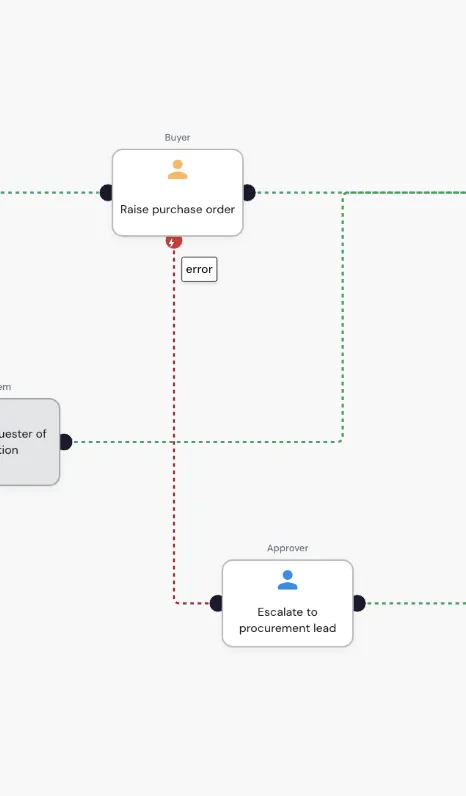
Adding an error path
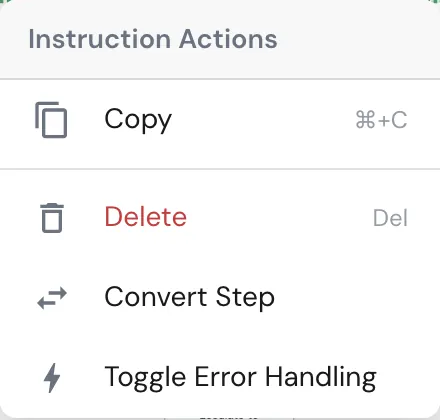
- Right-click the step and choose Toggle Error Handling. The step gets a second outgoing handle, marked with a red flash.
- Drag from that handle to the step that should run when this one fails. The
connection is drawn red and tagged
error. - Configure the handling step like any other step.
Choose Toggle Error Handling again to remove the branch. The error connection and the reason mapping below go with it.
The Error section
Once a step has an error branch, its configurator shows an Error section with one field: On failure, write the reason to.
The reason is the text that explains the failure: the message the action produced, or what the person who reported the task wrote. It is written to the variable you pick here the moment the step fails, before the error path starts.
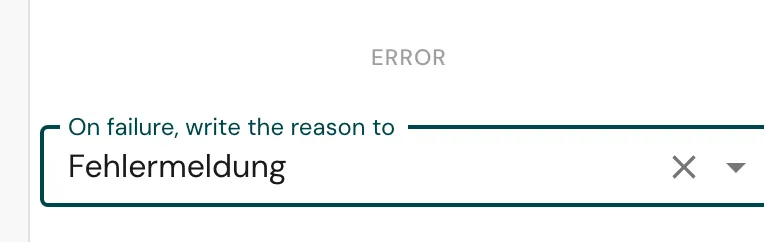
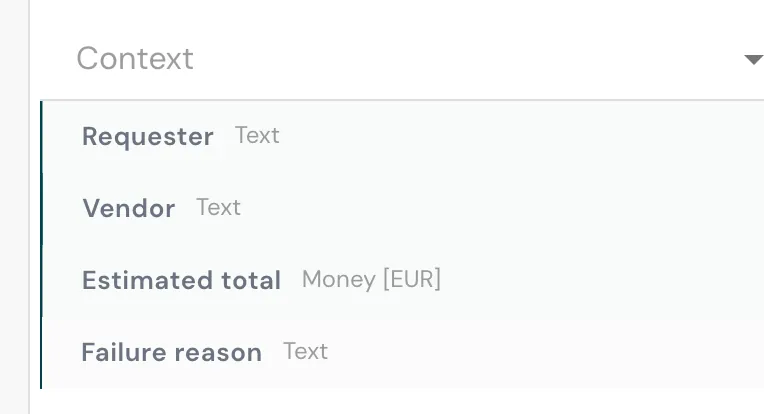
The default is Fehlermeldung, a text variable every process has. It records the reason, but it cannot be handed to a task: the Context picker does not offer it. To pass the reason on, pick one of your own text variables - the example writes it to Failure reason - or create one from the picker.
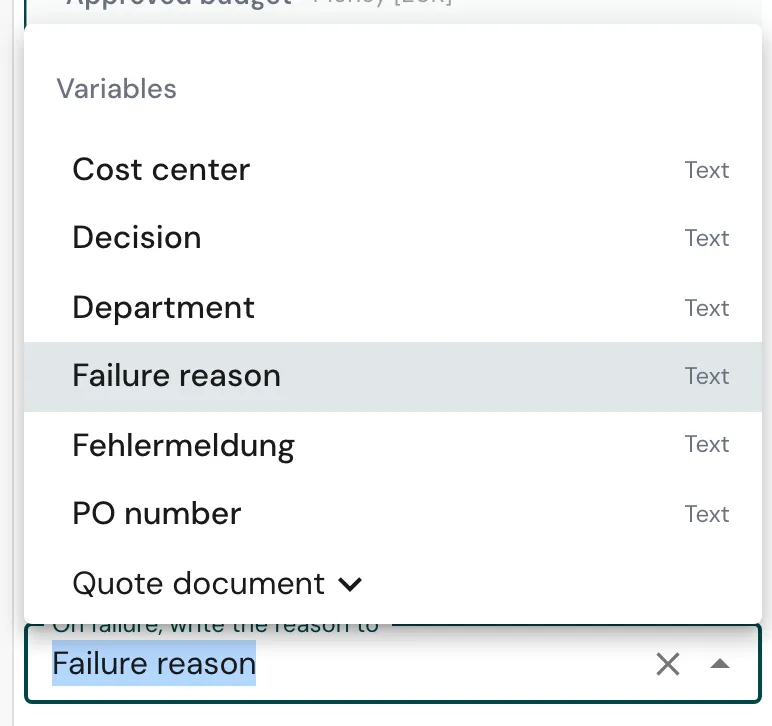
A variable holds the most recent failure only. When two steps with error paths write to the same one, the later failure overwrites the earlier text. Give each its own variable where a handler has to tell them apart.
Reading the reason in the handling step
The handling step reads the reason like any other value.
For a human task (Acknowledge, Submit Information, Review), add the variable you chose above to the step’s Context. It then appears under Provided information in the task, so whoever picks it up knows what went wrong before they act.
An automatic step reads it through its inputs the same way, for example to put the reason into a notification.
Without an error path
A step that fails without an error path stops the instance. The status turns Error, the failed step is marked on the process map, and the reason shows on the instance view. Nothing after the step runs.
Best practices
- Put error paths on the steps that realistically fail: external calls, scripts, document generation, and human tasks that depend on something outside the process - a vendor, a document, a colleague.
- Route the error path to a person. An Acknowledge or Submit Information task, assigned to the role that can resolve the problem, with the reason in its Context, is the simplest robust handler.
- Don’t error-handle every step. A hard stop that is visible in the instance view is the right outcome for a failure nobody can act on inside the process.
Related
- Task Exceptions - what a task worker or an agent does when a task can’t be done, and what happens next.
- Error Handling - the concept: logical outcomes vs. runtime errors, handled vs. unhandled.
- Workspace Basics - the connection colours, including the red error branch.
- Builder Menus - the step menu with Toggle Error Handling.