Step 2: Adding and Configurating Steps
With the Initial Process Configuration complete, we can start adding steps.
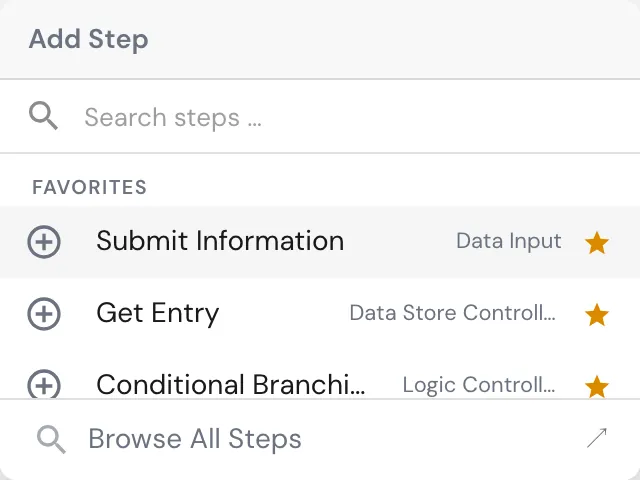
Hover with your mouse over the End Node and click the +. This opens the step picker where you clicked.
Type a few letters of what the step should do and pick from the matches. Once you mark certain steps as favorites, they appear at the top of this menu.
Browse All Steps opens the full catalogue.
Here is a quick guide to steps and how to add them
1: Idea Review by Project Sponsor
A project owner submits the project idea and enters the initial information when starting the process. That means the first task generated is the review of the project sponsor. Add a Review Step: search for it in the picker, or open Browse All Steps and find it under Human-in-the-Loop. Mark it as a favorite by clicking the .a9ddafb4.webp) . We will be using the Review Action a few more times in this process.
. We will be using the Review Action a few more times in this process.
.e31b682a.webp)
Select the new Review Step so that it is pulsing green. One the right, you will see the Configurator is now set to the Review Step.
.0939efd6.webp)
.1f0a9dc5.webp)
-
Set the
Task Nameto: Initial Project Idea Review -
Click on
Add Instructionsopening a Rich-Text Editor and enter: “Please check out this idea, and let me know if you have any questions.If it looks good, then I will get going on the business case.”
-
Enter and Assign the Role: Project Supervisor
.d1f5838c.webp)
Under Context (the data from the process instance shown to the user in the task), select the 3 parameters, we configured.
It is possible to select multiple symbols by clicking each one.
Typing into the Context field automatically starts a search across all variables and constants.
.5bee72b6.webp)
As Output we will add “Initial Idea Feedback” as a new value. Type Text and Description “Enter questions and concerns here.”.
Mark the Feedback as optional by clicking on .21543498.webp) . The question mark appears when you mouse over to the right of the symbol.
. The question mark appears when you mouse over to the right of the symbol.
This is what the finished Review Step should look like:
.7d985067.webp)
2: Idea Rework: Process Feedback
The Review Step has two nodes. It continues with an Approval or follows the failure branch if rejected. Our next step is the task which is generated for the Project Owner upon the supervisor not approving (rejecting) the idea in its current form.
In this step, the project owner sees the feedback given by the superior and has the option to edit the initial inputs given. As the project owner is entering information, - editing is also a form of entering - we will add a Submit Information Step next.
Click the end node of the failure branch to add the step to the correct branch.
.b7173b21.webp)
You will find it under Human-in-the-Loop. Mark it as a favorite by clicking the . We will be using the Submit Information Action a few more times in this process.
.93311654.webp)
- Set the
Task Nameto: Idea Rework - Process Feedback - Click on
Add Instructionsopening a Rich-Text Editor and enter: “Review the Feedback and make changes accordingly.” - Enter and Assign the Role: Project Owner
- Add the exisiting fields to the Context
- Add the original fields which should be editible to the output.
In Submit Information fields which are both in the context and in the output sections are deemed editable when the User Task is generated. This means the current value of the fields is shown and can be adjusted. If the field is only in the Output, then it is reset and the existing value is not shown.
Once configured, connect the end node back to the review step by dragging it on top of the Review step. The step completly configured should look like this:
.347a2f03.webp)
Notice the colour coding of the steps based on the Role which you assigned
3: Create Business Case
After the Idea has been approved by the supervisor, the project owner has the green light to create the business case. This step informs the project owner that a business case should be created, and gives the ability to submit a file. Click the End Point and select Submit Information from the favorites to create the next step.
-
Set the
Task Nameto: Create Business Case -
Click on
Add Instructionsopening a Rich-Text Editor and enter:Required Content:
- Objectives and success criteria
- Strategic alignment
- Expected benefits (quantitative & qualitative)
- Cost estimation (high-level)
- Risks and assumptions
- Alternative options (if applicable)
-
Enter and Assign the Role: Project Owner
-
Add the exisiting fields to the Context
-
Add a new value to Output
Name: Business CaseType: File
This is what this step should look like.
.e0c569ec.webp)
4. Business Case Review and Correction Loop
Using what you’ve learned so far, create a review step for the supervisor with a correction loop for the project owner. You will need to create a new value for Business Case feedback.
The process should look something like this:
.5d7dfd06.webp)
5. Finance Review
Next, we will get Finance involved. We will give them two main checks at this stage: budget availability and vaildating the business case ROI calculation.
If a Review has multiple checks which determines what needs to happen next, add booleans to the review and leverage Conditional Branching. This gives more flexibility than selecting one mutually exclusive outcome and triggering a Match Case step. Check out this article if you want to learn more.
- Add a new Review Step
- Assign to a new Role “Finance”
- Setup the Context
- Add 3 New Symbols to the output: (Budget Exists - Boolean, ROI Validated - Boolean, Finance Feedback - Rich Text)
.7a04a1b0.webp)
.6782d74f.webp)