Workspace Basics
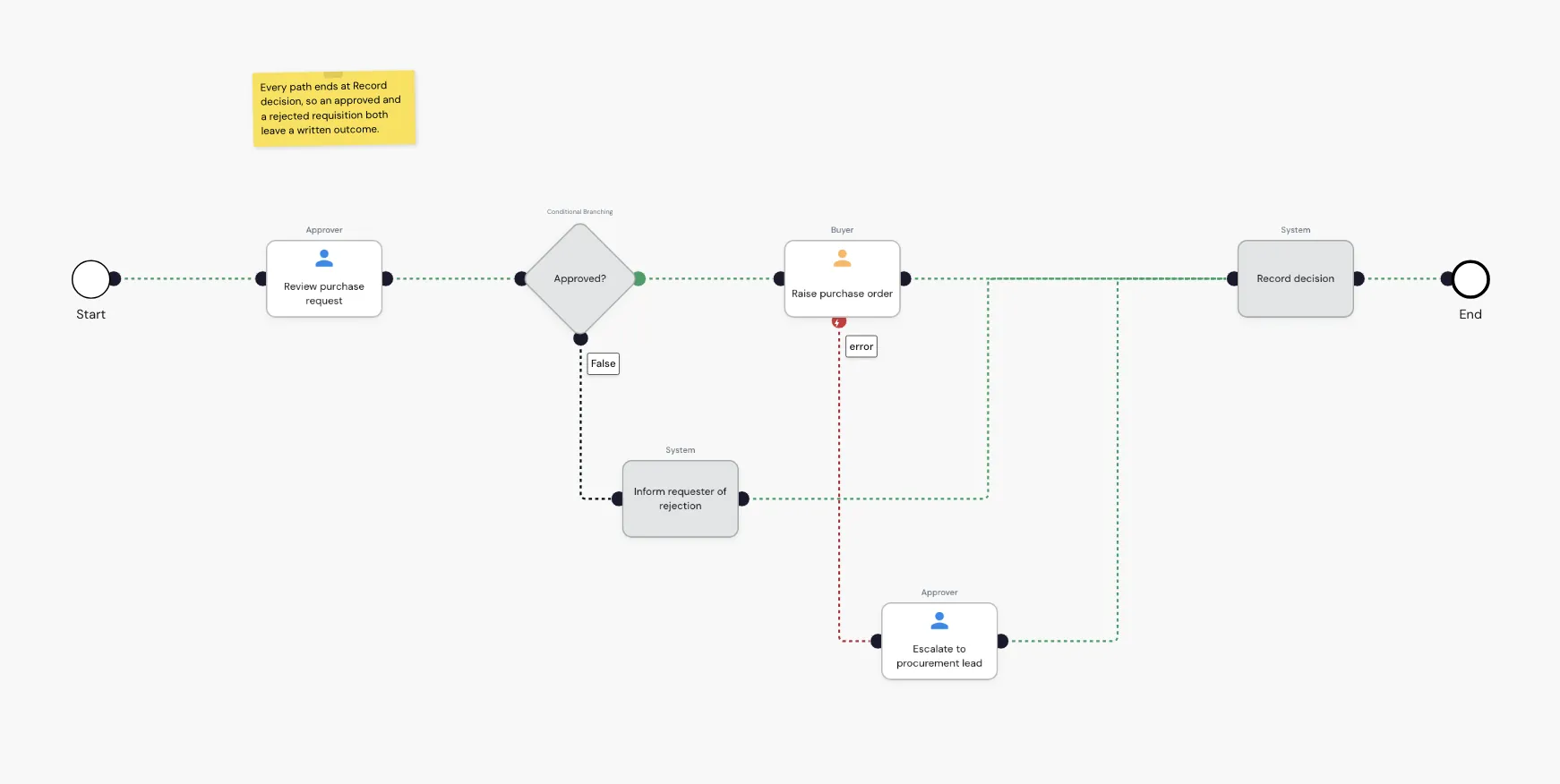
The workspace is the canvas a process is drawn on: the steps, the connections between them, and the notes left for whoever opens the process next. Every screenshot on this page comes from the same example, a purchase requisition approval with a review, a branch on the decision, and an error path off the step that raises the order.
Add a Step Button
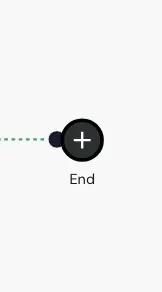
Positioning the mouse over an End node will reveal a +. Clicking on this opens the Add Step Menu.
Role Legend
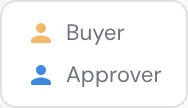
Steps carry the color of the role assigned to them: the marker on the step is drenched in that role’s color. The Role Legend at the bottom left corner of the workspace maps each color to its role. System steps carry no marker and are not listed.
Scrolling and Zooming in the builder
The workspace is an endless canvas, so even the most complex processes can be modelled. The Workspace can easily be navigated by scrolling and zooming. here are some tips to scrolling and zooming depending on the operating system and pointing device you are using:
| Operating System | Device | Instructions |
|---|---|---|
| macOS | Touchpad | Scrolling and Zooming use standard multi-touch gestures |
| Microsoft Windows | Touchpad | |
| Microsoft Windows | Mouse (Scroll Wheel) | ctrl + Scroll up - zooms in where mouse is. |
| Linux | Touchpad | Ctrl + Scroll for Zoom |
| Linux | Mouse |
Workspace Right-Click Menu
Right-Clicking in an empty portion of the Workspace opens the Right-Click Menu. The letter beside an entry is its shortcut: with the menu open, pressing that key runs the entry.
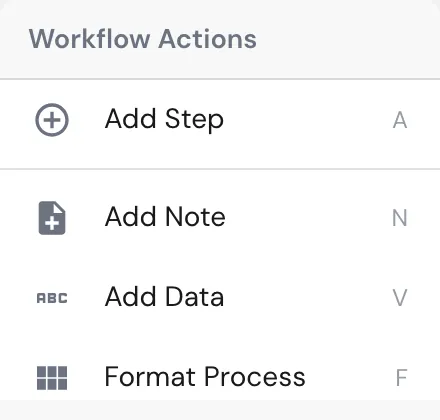
Add Step: opens the step picker at that spot. See Add Actions
Add Note: adds a note to the workspace
Add Data: opens the Add Data Dialog where you can directly create new variables and constants.
Format Process: this repositions all the steps.
Format Process does not move Notes.
Copy and Paste join the menu once you have copied a step.
Add a Note
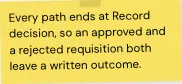
While building a process, it is sometime helpful to leave a note to yourself or to others working on the process. They can be added using the Right-Click Menu in the Workspace. Notes can be dragged and dropped. They automatically resize. Notes are only visible in the Builder.
Step Status Indicators
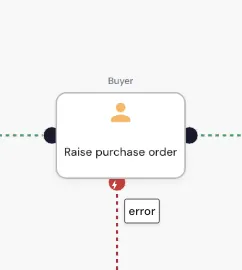 | No glow: a role is assigned and the step is completely configured |
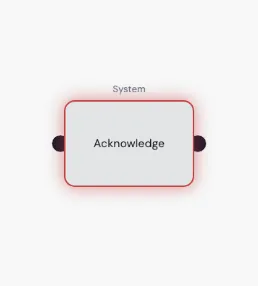 | Glowing Red: The step is currently invalid due to a missing configuration. The Configurator names what is missing:  |
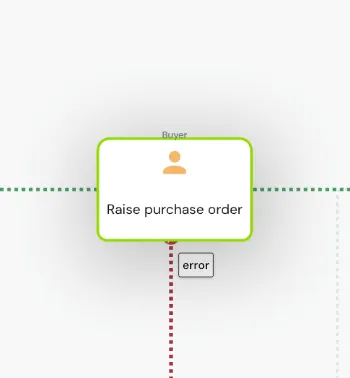 | Enlarged with a green ring: The step is currently selected and loaded in the Configurator |
Connecting Steps
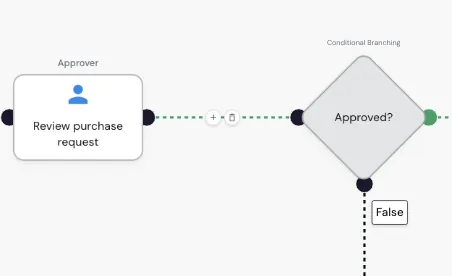
Connections are visualised as green, black and red dashed lines. They are animated to show the direction to the next step.
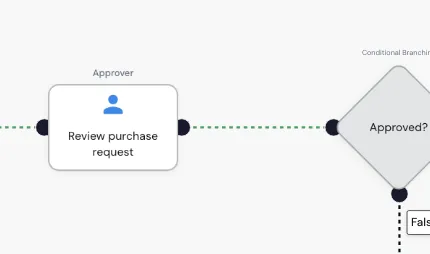 | Green Lines are standard. They represent a positive outcome of the step, and carry no tag |
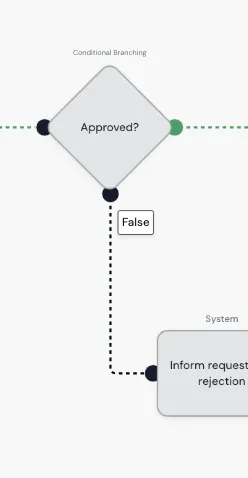 | Black Lines represent the other branch of a step that can go two ways, such as Review and Conditional Branching. They are tagged with False |
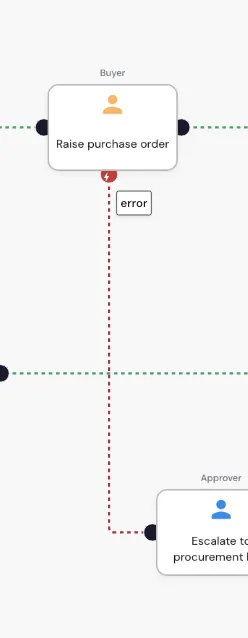 | Red Lines represent an error handling branch from a step where error handling has been toggled on. They are tagged with error |
Steps which are added directly from the End node are connected automatically. When a step is added via the right-click menu, it is not. To connect it, drag from the outgoing handle of the step it should follow onto it.
Only steps connected to the main process will show the End node.
Breaking a Connection
Hovering a connection reveals two controls on it: one inserts a step into the connection, the other removes it. Right-clicking directly on a connection removes it straight away, with no menu. Connections can also be removed from the connections section of the Configurator.
Viewing Connections (Configurator)
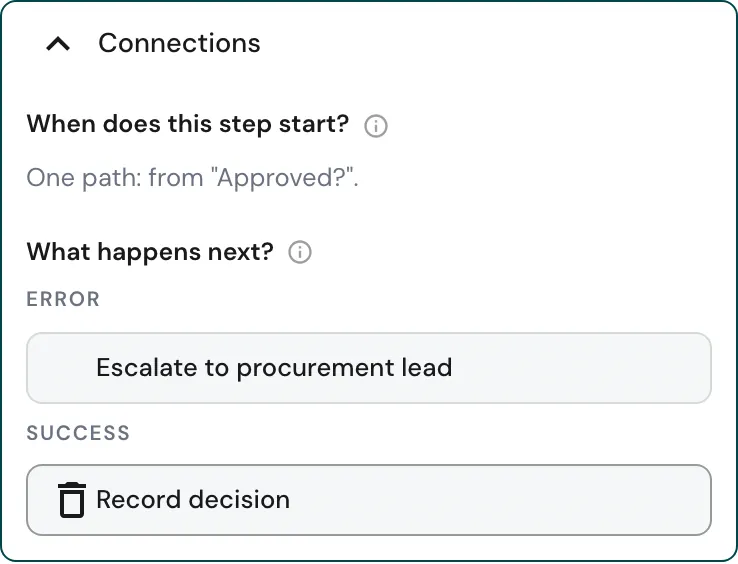
Every path into and out of a step is listed in the Configurator, under ADVANCED then Connections.
When does this step start? lists the incoming paths, What happens next? the outgoing ones, grouped by the outcome that takes them.
Where several paths arrive or leave, this is also where you decide how they combine.
Multiple Connections
A step can have multiple Outgoing (Branching) or multiple Incoming (Merging) connections. Branching and Merging Logic needs to be defined accordingly. More information on Branching and Merging can be found here.
Step Right-Click Menu
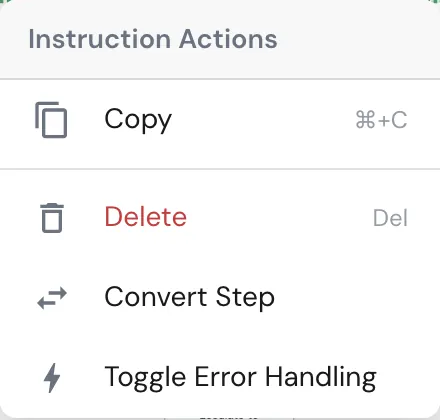
right clicking directly on a step opens the Instruction Actions Menu
Copy: copies the step, so it can be pasted elsewhere on the canvas
Delete: deletes the step
Convert Step: swaps this step for a different one, keeping its connections
Toggle Error Handling: Adds a Error Handling Node under the given step. See Error Handling