Add a User
A user is an account a person signs in through. Add users so your processes have people to send work to. Adding users is an admin task.
1. Invite the user
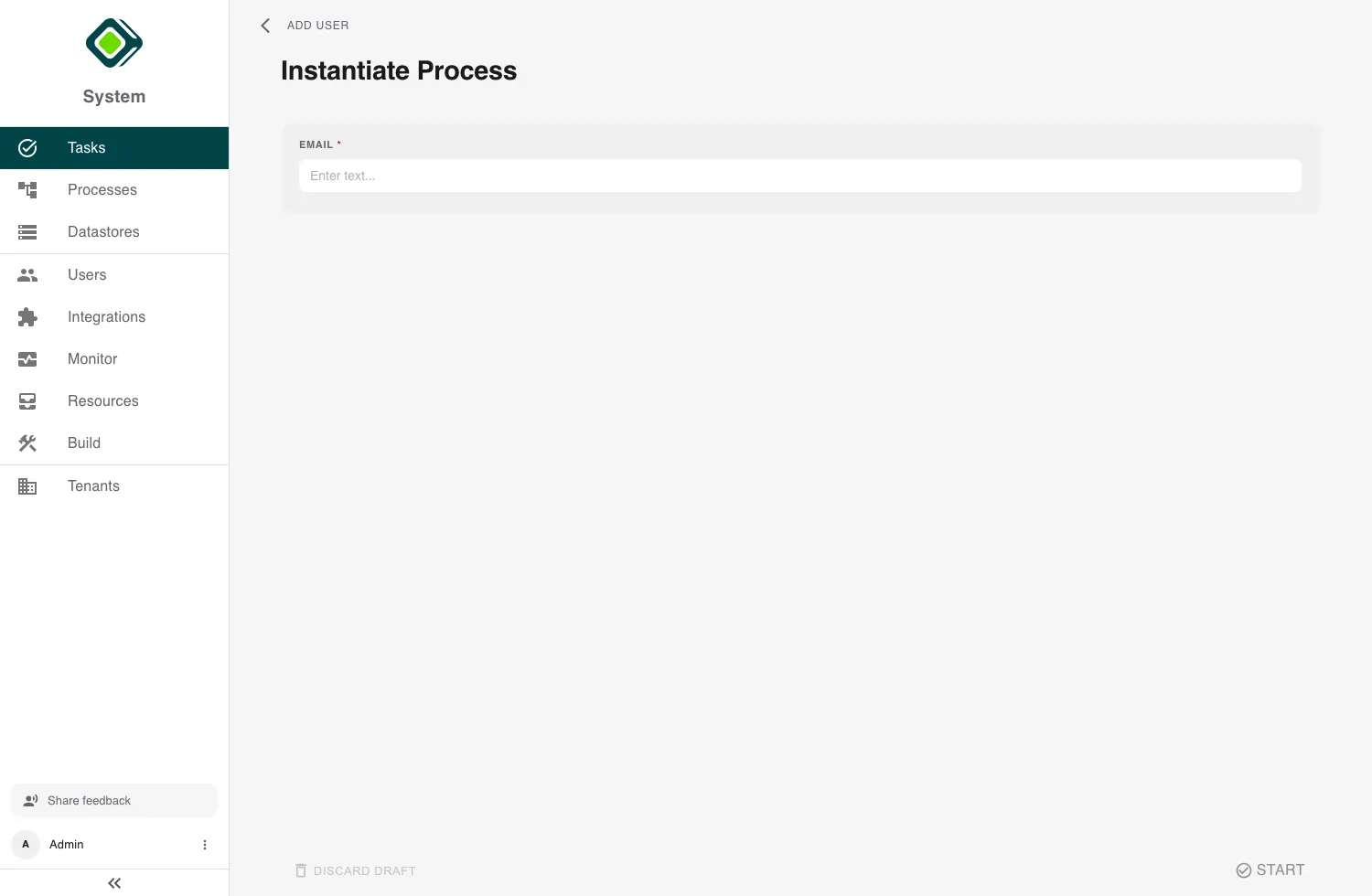
Open Users and, on the Users fold, click Add User. Enter the person’s email to send the invite. Until they accept, they show with a pending badge.
2. Give them access
Open the new user and set the access they need:
- Authorities - what they can do across the workspace (see Setup Authorizations).
- Groups - the teams whose tasks they should receive.
- Organizations - the org units they belong to.
Tip
Add people to a group (for example Reviewers) so process steps sent to that group reach them automatically, without naming them in every process.
3. They’re ready to work
Once they accept and have access, the user sees their Task Inbox and the Processes they’re allowed to start, and can begin picking up work.
Next, continue with Add an Agent.
Last updated on