Microsoft Business Central
Connect a Microsoft Dynamics 365 Business Central environment to work with your vendor master data. metamorphOS reads and maintains vendors through the standard Business Central API and resolves the payment terms and payment methods a vendor refers to. metamorphOS calls Business Central to do the work; Business Central does not send anything back, so this connector is outbound only.
What you can do
- Companies: list the companies in the environment and pick the one to work in.
- Vendors: search by name or vendor number, read one vendor, create a vendor, and change an existing one, including its payment block.
- Payment terms and payment methods: list them, so a vendor can be given the right ones.
Before you start
You need:
- A Business Central online environment. This connector uses the cloud service, not an on-premises installation.
- A Microsoft Entra ID administrator who can register applications and grant tenant-wide admin consent (Global Administrator, Privileged Role Administrator, or Cloud Application Administrator).
- The Business Central Administrator role, or someone who can open the Entra Applications page in Business Central.
metamorphOS signs in as an application, not as a person. Nobody has to stay signed in and no user licence is consumed. Every change a process makes is recorded under the application’s user in Business Central.
The setup has three parts, and all three are required:
1. Choose the Entra application
metamorphOS can sign in as your own application registration or as the shared metamorphOS application. Pick one; the rest of the guide is the same for both.
| Your own application | metamorphOS application | |
|---|---|---|
| Registration | You register it, or reuse one you already have | None |
| Consent | Grant admin consent on the app’s API permissions | Open one consent link |
| Client secret | Yours; you create it, rotate it and enter it in metamorphOS | metamorphOS’s; a metamorphOS team member enters it in your tenant during onboarding |
| Revoke | Delete the secret or the app | Remove the enterprise application from your tenant |
| Best for | Most tenants, and any tenant with its own Entra governance | A fast pilot |
1a. Your own application
- Microsoft Entra admin center → App registrations → New registration. Any name, Single tenant, no redirect URI. To reuse an existing registration, open it instead.
- API permissions → Add a permission → Dynamics 365 Business Central →
Application permissions, tick
API.ReadWrite.All, add it, then click Grant admin consent for <your organisation>. The status column has to read Granted. The permission type must be Application; a Delegated permission does nothing for an application sign-in, which is the usual mistake when reusing an app that was set up for a person. - Certificates & secrets → New client secret. Copy the Value now; it is shown once. Note the expiry date: when it passes, every call fails until you create a new secret and update it in metamorphOS (step 4).
- From Overview, copy the Application (client) ID and the Directory (tenant) ID.
If the registration is already used by another integration, its Business Central record and permission sets exist too, and everything using it shows up as the same user. A registration per integration keeps attribution and revocation clean.
1b. The metamorphOS application
The metamorphOS Application (client) ID is:
9e7b1d60-b8bb-46b7-8899-bf6003aae46d-
Open the consent link in a browser, signed in as an administrator of your tenant, with your tenant ID in the path:
https://login.microsoftonline.com/<your tenant ID>/adminconsent?client_id=9e7b1d60-b8bb-46b7-8899-bf6003aae46d -
Review the permission it asks for, Full access to web services API (
API.ReadWrite.All), and accept. The browser lands on a Business Central page, which is only the confirmation target; nothing there needs doing. -
Verify it took: Entra admin center → Enterprise applications, find the metamorphOS application, open Permissions. The permission has to be listed as granted for your organisation.
Your Directory (tenant) ID is on the Overview page of the Entra admin center. Copy it; metamorphOS needs it in step 4.
2. Give the application access inside Business Central
Consent is not enough on its own: Business Central keeps its own list of applications that may call it. This is the half that most often goes wrong, because the page is easy to miss and the order of the fields matters. Work through it exactly in this order.
1. Open the page. In the environment you want to connect, press Alt+Q (or
click the magnifier, Tell me what you want to do / Was möchten Sie tun?) and
type Entra Applications. Older versions call the same page Azure Active Directory Applications or AAD Applications. You land on a list of the
applications this environment trusts, most likely empty.
2. Create the record. Choose New / Neu. A Microsoft Entra Application Card opens.
3. Fill in two fields.
| Field | Value |
|---|---|
| Client ID | The Application (client) ID from step 1: your own app’s, or 9e7b1d60-b8bb-46b7-8899-bf6003aae46d for the metamorphOS application. Paste it with or without the curly braces; Business Central normalizes it. |
| Description | Anything recognisable, for example metamorphOS. |
Leave State on Disabled for now. The Extension fields stay at
all-zeros: they describe an installed Business Central extension, and metamorphOS
is not one.
4. Add the permission sets, while the record is still disabled. In the User Permission Sets part at the bottom of the card, choose New Line / Neue Zeile, click into the Permission Set / Berechtigungssatz column, and pick from the lookup:
| Permission set | Why |
|---|---|
D365 AUTOMATION | The web-service surface an application identity calls through. |
D365 BUS FULL ACCESS | Read and write of business data. A narrower set works as long as it grants read and write on vendors and read on payment terms and payment methods. |
Leave the Company / Mandant column empty on every row. A company named there
limits the permission to that one company, and a call into any other company of
the same environment is refused with a 403. The remaining columns fill
themselves in.
5. Now set State to Enabled and confirm the prompt. Business Central creates
an application user for the record, shown under User information. That user
is the author of everything a process writes.
Once enabled, the record is read-only: the card says “You must set the State
field to Disabled before you can make changes to this app.” To change a
permission set later, set State back to Disabled, edit the lines, and
enable it again. This is why the permission sets go in first.
The finished record:
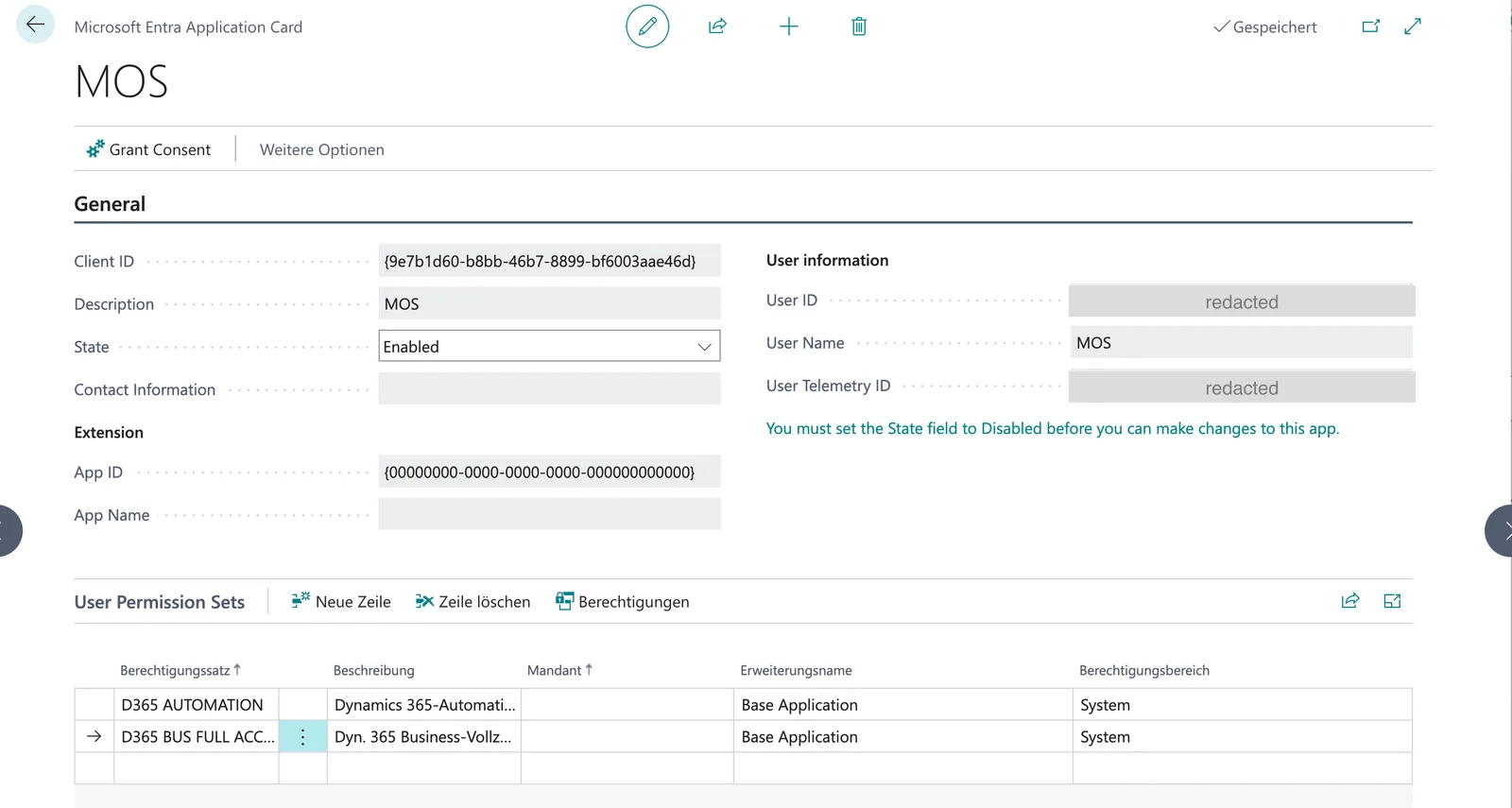
The Grant Consent action on the card opens the same Entra consent dialog as step 1. Using it does no harm; skipping it does none either once consent is granted.
Do this once per environment. Production and Sandbox are separate deployments with separate application lists, so a record in one grants nothing in the other.
3. Find your environment name and company
- The environment name is shown in the Business Central Admin Center, and in
the address bar when you are signed in (for example
ProductionorSandbox). Capitalisation matters. - The company is chosen per action, not per account, because one environment can hold several companies. Run the connector’s find-companies action once and keep the ID it returns for the company you want to work in.
4. Connect in metamorphOS
Activate the Microsoft Business Central connector from the marketplace and open its detail page. Two things to fill in, in this order:
Set up the OAuth client (once per connector). Enter the Client ID and Client Secret of the application from step 1. The scopes are prefilled; the callback URL and PKCE do not apply to an application sign-in and can be ignored. For the metamorphOS application, a metamorphOS team member does this for you during onboarding, since the secret is metamorphOS’s own.
Connect an account (one per environment). There is no sign-in popup; the account is authenticated as soon as you save it with:
- Tenant ID: your Directory (tenant) ID.
- Environment: the environment name, for example
Production.
Each account points at exactly one tenant and one environment, so a Sandbox and a Production connection are two accounts.
To check the connection, run the find-companies action. A list of companies means all three parts of the setup are correct.
If a call is refused
| What you see | Where to look |
|---|---|
401 on every call | The application has no granted API.ReadWrite.All application permission. Check the app under Enterprise applications → Permissions; for your own app, also that the permission is of type Application, not Delegated. |
403 on every call | Business Central does not know the application. Check the Entra Applications record exists in this environment, its Client ID matches the app in the OAuth client form, its state is Enabled, and it carries a permission set. |
403 in one company only | A permission-set row names a company. Clear the Company column. |
| Writes refused, reads fine | The permission set is read-only. Add D365 BUS FULL ACCESS. |
AADSTS700016, application not found | The client ID does not exist in this tenant: consent for the metamorphOS application was never granted, or the tenant ID in the account does not match the tenant the app is registered in. |
AADSTS7000215 or AADSTS7000222, invalid or expired client secret | The secret in the OAuth client form is wrong or has expired. Create a new secret in the app registration and update the OAuth client. |
404 on every company-scoped call | The environment name is misspelled (capitalisation matters) or the company belongs to a different environment. |
| The consent screen asks a user to sign in rather than an administrator | The link was opened by a non-administrator. Only a tenant administrator can consent for the organisation. |
Keeping up with vendor changes
Business Central can notify a subscriber whenever a record changes, and this connector carries the actions that manage such a subscription. metamorphOS cannot receive those notifications yet: Business Central confirms a new subscription by having the receiver echo a token back in its reply, and proves each later notification with a secret carried in the request body. The webhook receiver supports neither, so a subscription created today is never confirmed.
Until it does, have a process read what it cares about on a schedule. The
find-vendors action takes an OData filter, so a daily run can ask only for the
vendors whose lastModifiedDateTime is after the run before it.
Good to know
- Changing a vendor needs its concurrency token. Business Central refuses an update that does not carry one, so read the vendor first and pass the token it returns. This is what stops two processes from overwriting each other.
- Blocking is not deleting. A vendor’s block setting has three values: not blocked, blocked for payment, and blocked for everything. Blocking a vendor is the ERP-correct way to stop paying it while keeping its history.
- Vendor bank details are not available. The standard Business Central API does not expose a vendor’s IBAN, SWIFT or bank account number, and neither does this connector. Reading them needs a custom API published by your Business Central partner. Ask before building a payment run that depends on them.
- Filtering has one Business Central quirk: you can combine conditions with OR only on the same field. Two different fields have to be combined with AND.
- Large result sets are paged by Business Central itself. Follow the next-page link the search actions return rather than skipping records.