Personio
Connect Personio, your HR platform, so processes can work with the people data already maintained there. metamorphOS reads employees, their employments, absences, attendance and compensation, runs the reports built in Personio’s report builder, updates person records, and files documents to employee folders.
What you can do
- People: look up employees, filter them by name, e-mail, status or when they changed, and update their details - including payroll fields such as bank details, tax class and health insurance.
- Employments: read the contract behind a person - hire date, contracted weekly hours, org assignment, and the leaving date for someone who has left.
- Absence: read absence periods and the absence types configured for your company, with the absence days Personio itself calculated.
- Attendance: read the time people were present - work and break periods, each with the duration Personio calculated and the day it counts towards.
- Compensation: read compensation records.
- Reports: list the reports built in Personio, run one, and read its rows - with the attribute labels resolved, so a report is readable rather than a table of internal identifiers.
- Organisation: read the departments, teams, cost centres, jobs, workplaces and legal entities employees are assigned to.
- Documents: upload a document into an employee’s file.
Everything except person updates and document upload is read-only.
Before you start
You need a Personio account and an administrator who can create the integration. Personio issues these from its own admin screens - there is no separate developer portal.
This connector can be granted access to payroll data - bank details, tax class, health insurance, salaries. Personio grants nothing by default: you choose exactly which resources and which employee attributes it may read and write. Grant only what your processes actually use.
Set up Personio
1. Create the integration
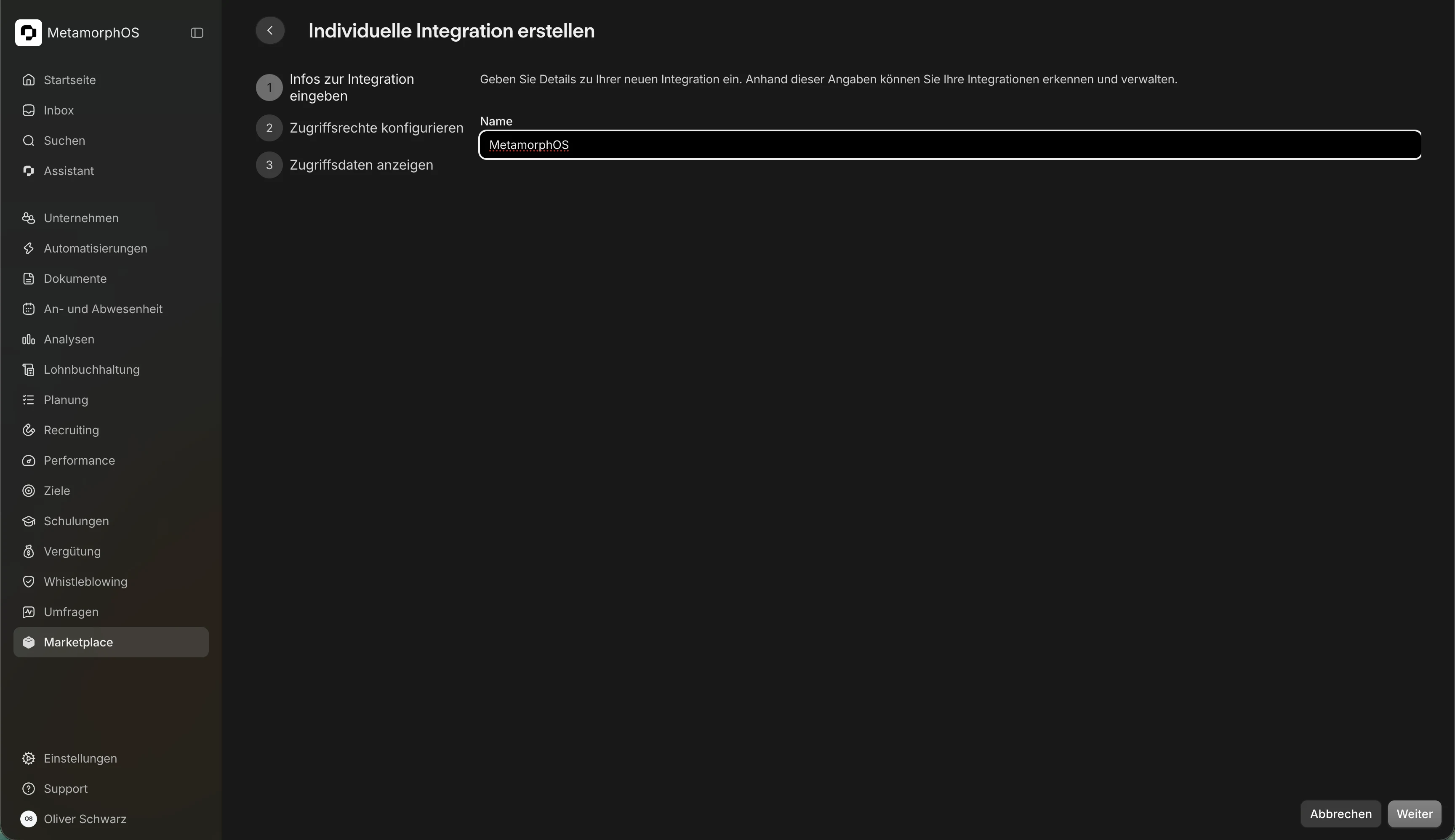
Log in as an administrator, open Marketplace, and create a custom integration (Individuelle Integration erstellen). Give it a name you will recognise later - this is what identifies metamorphOS in Personio.
2. Grant the access it needs
This screen is the entire permission model. Personio decides what the connector may do purely from what you tick here, and the connector cannot ask for more than you grant. Anything that later fails with a permission error is a missing tick on this screen, not a metamorphOS setting.
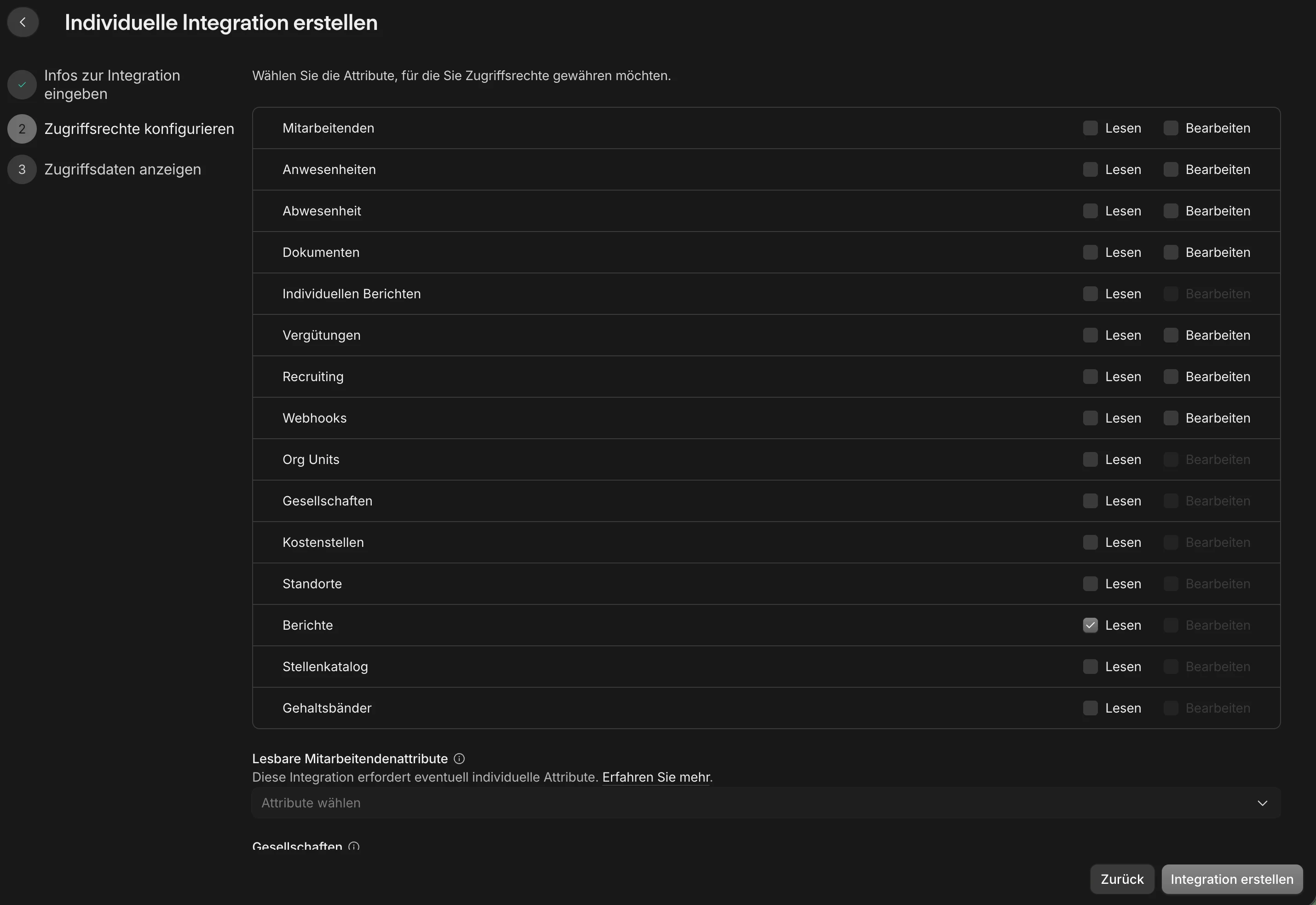
Tick the rows for the things you plan to use:
| Resource | Read | Edit | Needed for |
|---|---|---|---|
| Mitarbeitenden | ✅ | for updates | People and employments; updating master data |
| Abwesenheit | ✅ | - | Holiday and sickness |
| Anwesenheiten | ✅ | - | Attendance - worked time and breaks |
| Vergütungen | ✅ | - | Compensation |
| Dokumenten | - | ✅ | Uploading documents |
| Berichte | ✅ | n/a | Reports |
| Org Units, Kostenstellen, Standorte, Gesellschaften, Stellenkatalog | ✅ | n/a | Turning identifiers into names |
Tick Berichte, not Individuellen Berichten. They sit on adjacent rows and are two different reporting interfaces - Berichte is the one this connector uses. Tick the wrong one and every report call fails with a permission error while this screen looks correctly configured.
Then choose the readable attributes. Below the resource list, Lesbare Mitarbeitendenattribute controls which employee fields come back at all. Payroll fields - bank details, tax class, health insurance, social security number - are not returned unless you select them here.
An attribute you did not select is silently missing from the data rather than reported as an error. That turns a permission gap into blank fields in your process instead of a failure you would notice. Select exactly the attributes your processes read, and check this screen again if a field arrives empty.
Updating master data works the same way: Bearbeiten on Mitarbeitenden is what allows updates at all, and the attributes that may be changed are selected in the matching picker on this screen.
3. Copy the Client ID and Client Secret
Personio shows the secret once, at creation. Copy it immediately - if it is lost, generate a new one rather than looking for a way to recover it.
Connect in metamorphOS
Activate the Personio connector and add an account, supplying the Client ID and Client Secret from the step above. metamorphOS exchanges them for an access token and renews it on its own - Personio’s tokens last 24 hours, and nothing needs rotating by hand.
Leave the scopes field empty. Personio rejects a login that asks for scopes - access is decided entirely by the rights you ticked in step 2. The connector requests none, so the field stays blank unless someone types into it.
Working with reports
Enable a report before you use it
Personio ships no ready-made reports. Every report is one your team built in the report builder, and it stays invisible to metamorphOS until an administrator switches it on: open Analysen → Berichte, tick the report, choose API-Zugriff verwalten, set it to Aktiviert, and save.
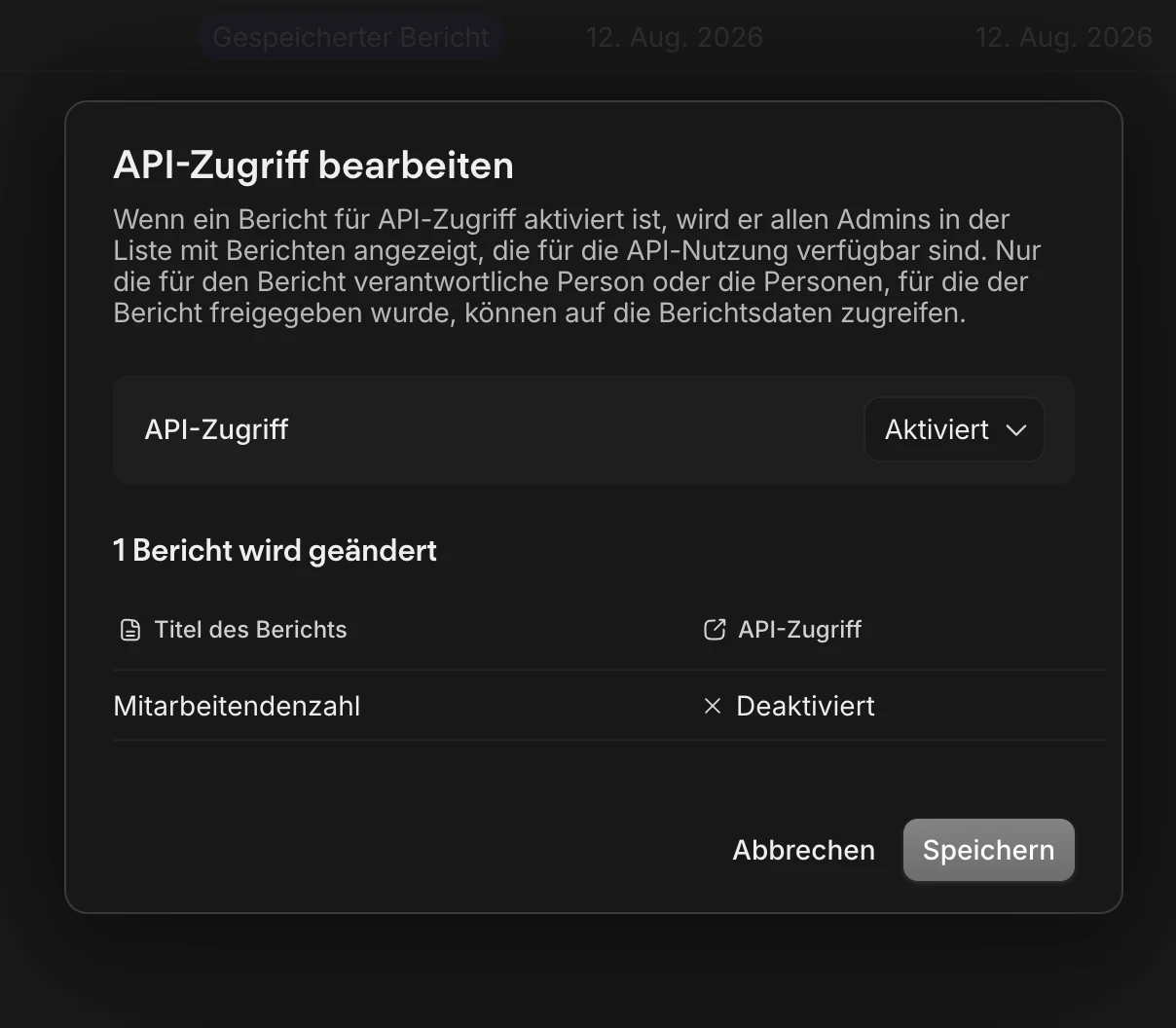
Enabling API access makes a report findable; it does not make its data readable. As the dialog says, only the report’s owner and the people it has been shared with can read its rows. If a report shows up in metamorphOS but comes back empty, share it in Personio with the person who owns the integration.
Because every report is your own, its identifier is unique to your Personio account. Give it to your process as a parameter rather than treating it as part of the connector, and look the report up by name so that rebuilding it does not quietly break the process.
How report data arrives
Personio’s reports return their data by internal attribute identifier rather
than by name. The connector exposes the matching lookup, so a process can turn
cost_center_id into “Cost centre” and an identifier into the value a person
would recognise.
Each cell of a report carries its value in the form the attribute is defined with - text, number, percentage, money with its currency, a date range, or a set of options. A process reads whichever one matches the column, so amounts stay amounts and dates stay dates.
Reports are returned a page at a time; processes follow the cursor metamorphOS hands back with each page.
When not to use a report
For reading employee master data, don’t. A report gives you the same attribute-by-identifier shape that simply reading people does, but adds a setup step and an identifier unique to your account. Reading people directly needs neither, and the attribute names it uses are Personio’s own stable ones rather than report columns anyone can rename.
Reach for a report when you want an aggregation someone already built - not to fetch fields you could read directly.
Payroll data: where each field lives
| What you need | Where it comes from |
|---|---|
| Active employees, names | Reading people, filtered to active |
| Bank details, tax class, health insurance | Reading people - as employee attributes, once selected in step 2 |
| Hire date (Eintrittsdatum) | Reading a person’s employments |
| Leaving date, notice details | Reading a person’s employments |
| Weekly hours and full-time equivalent | Reading a person’s employments |
| Holiday and sickness for a payroll month | Reading absences for that period |
| Worked time and breaks for a payroll month | Reading attendance for that period |
| Salaries, bonuses, one-off payments | Reading compensation |
| Changing employee master data | Updating a person |
Good to know
- Absence filters match overlapping periods. Asking for a date window returns every absence that overlaps it, not only those starting inside it. For a monthly payroll run, split a period that straddles the month boundary yourself - Personio does not do it for you.
- Absence days are calculated by Personio against each person’s work schedule and public holidays, so you do not have to work out which days were working days.
- Attendance counts towards the day it is booked to, not the day it starts. A night shift beginning on the 31st can belong to the following month, and metamorphOS filters on the booked day so it lands where payroll expects it.
- Attendance durations come from Personio too. Start and end are local times with no timezone, so working the length out yourself goes wrong by an hour whenever the clocks change - the calculated duration does not.
- Classify absences by category, not by name. The name is whatever your team called it (“Urlaub”, “Erholungsurlaub”, “Vacation”); the category is Personio’s own fixed vocabulary for paid holiday, sick leave and the rest. Match on the category and renaming a type in Personio will not break your process.
- The hire date is on the employment, not the person. Reading a person gives you who they are; reading their employment gives you the contract - when they started, how many hours, and when they left.
- Departments and teams are read separately. Personio treats them as two kinds of the same thing, so a process asks for one or the other.
- Person updates need the full name. Personio requires first and last name on every update, even when neither is what you are changing.
- Document upload accepts files up to 30 MB, at up to 60 uploads a minute.
- Reports show what the credential may see. If a report comes back missing columns, the integration is usually missing access to those attributes rather than the report being wrong.
- Everything is written to Personio’s audit trail under the integration name you chose in step 1, so name it something your HR team will recognise.