Reverting & Migrating Instances
A running instance carries two things: where it is on its process graph and which revision of the process it is walking. Two actions on the instance change one of them deliberately.
- Revert moves the instance back to an earlier step. The data those steps wrote is undone and their tasks reopen.
- Migrate moves the instance onto a newer revision of the process. It stays where it is; the steps ahead of it now follow the new definition.
Both are recorded in the instance’s Activities trail. Nothing is deleted.
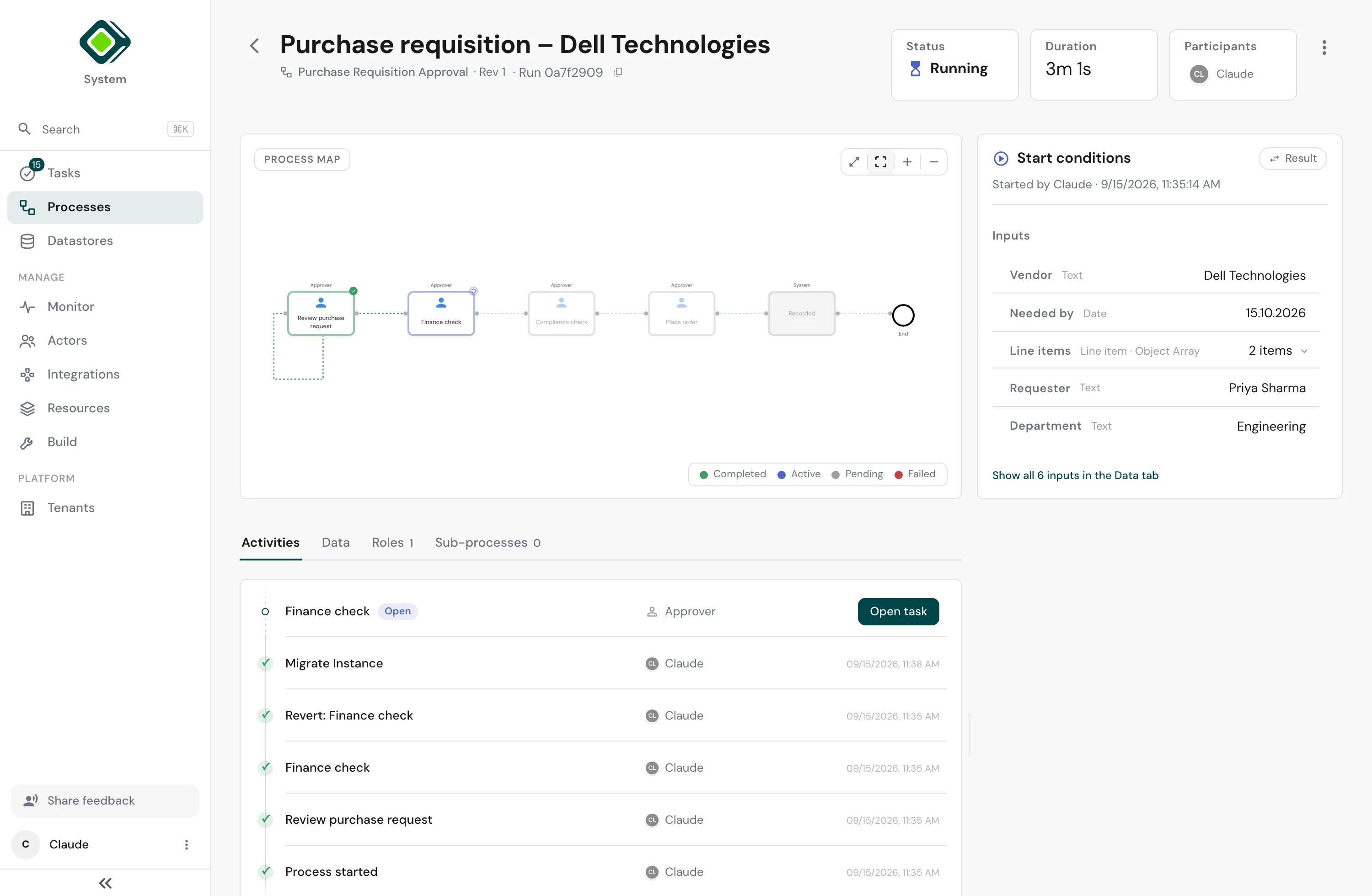
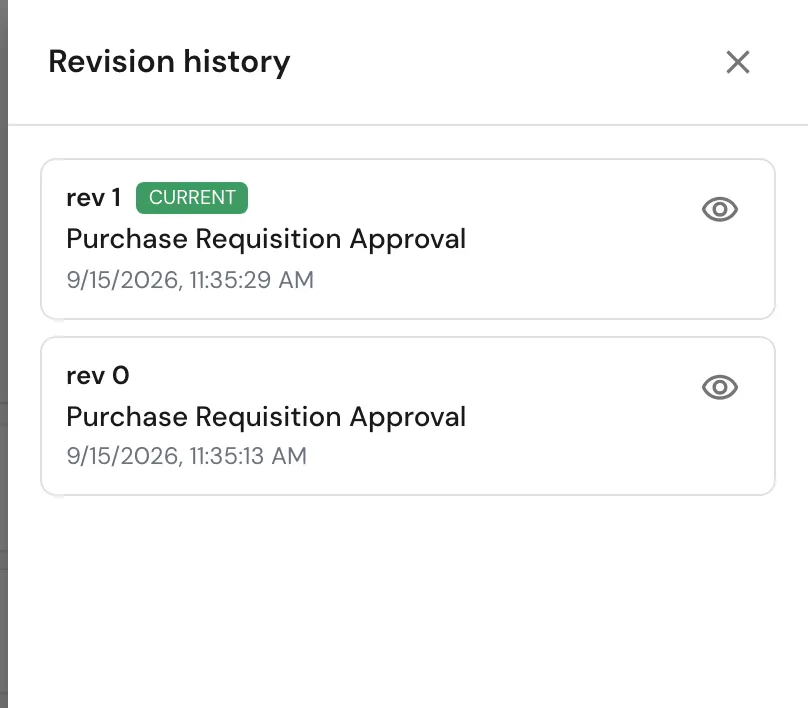
The example on this page is a purchase requisition approval. Revision 0 runs Review purchase request → Finance check → Place order. Revision 1 adds a Compliance check between the finance check and the order.
Revert to a step
Revert takes the instance back to the state it was in before a chosen step ran. Everything that happened from that step on is undone:
- the values those steps wrote are gone from the instance’s data,
- open tasks for later steps disappear,
- the task for the step you reverted to is open again.
The trail keeps every step that was undone and adds a Revert entry naming the step you went back to. That is the audit record - a revert is itself a recorded action, and you can undo it later by reverting to a different point.
How to revert
- Open the instance and find the step in Activities.
- Click the step. Its Step details panel opens on the right.
- Open the panel’s ⋮ menu and choose Revert.
- Confirm with Revert.
Only tenant admins can revert. Anyone else does not see the entry.
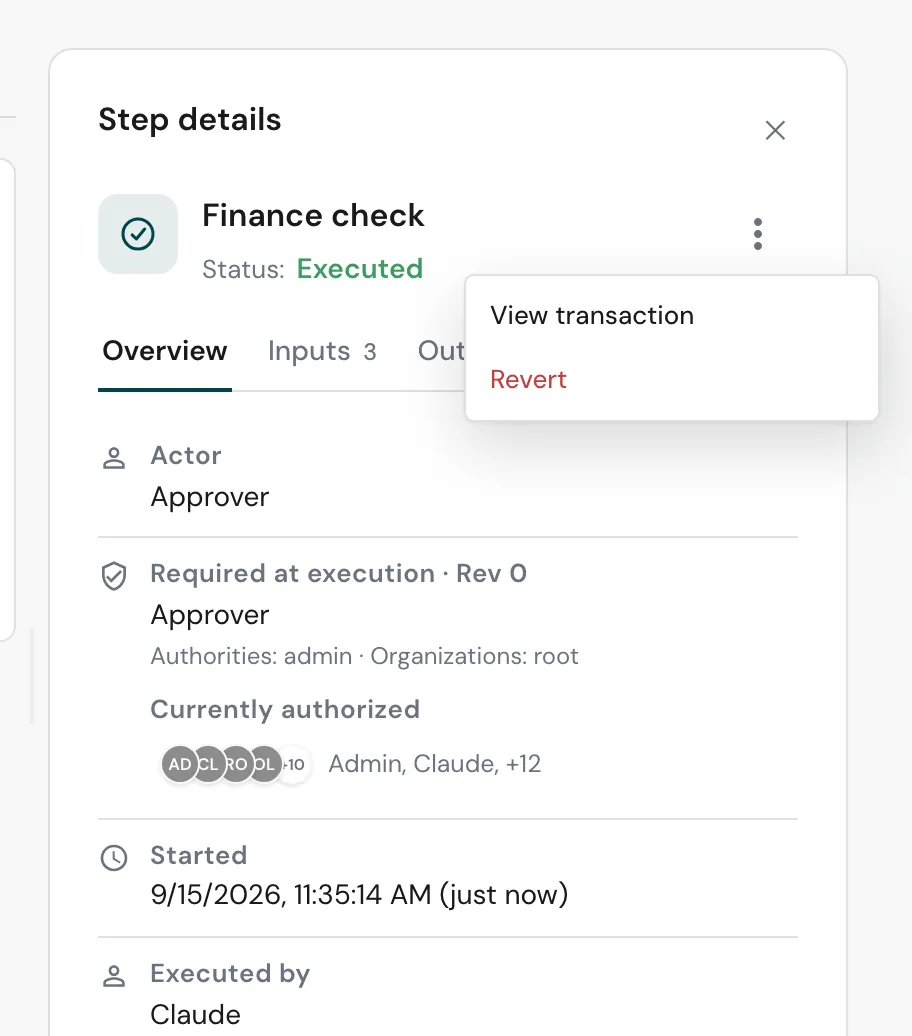
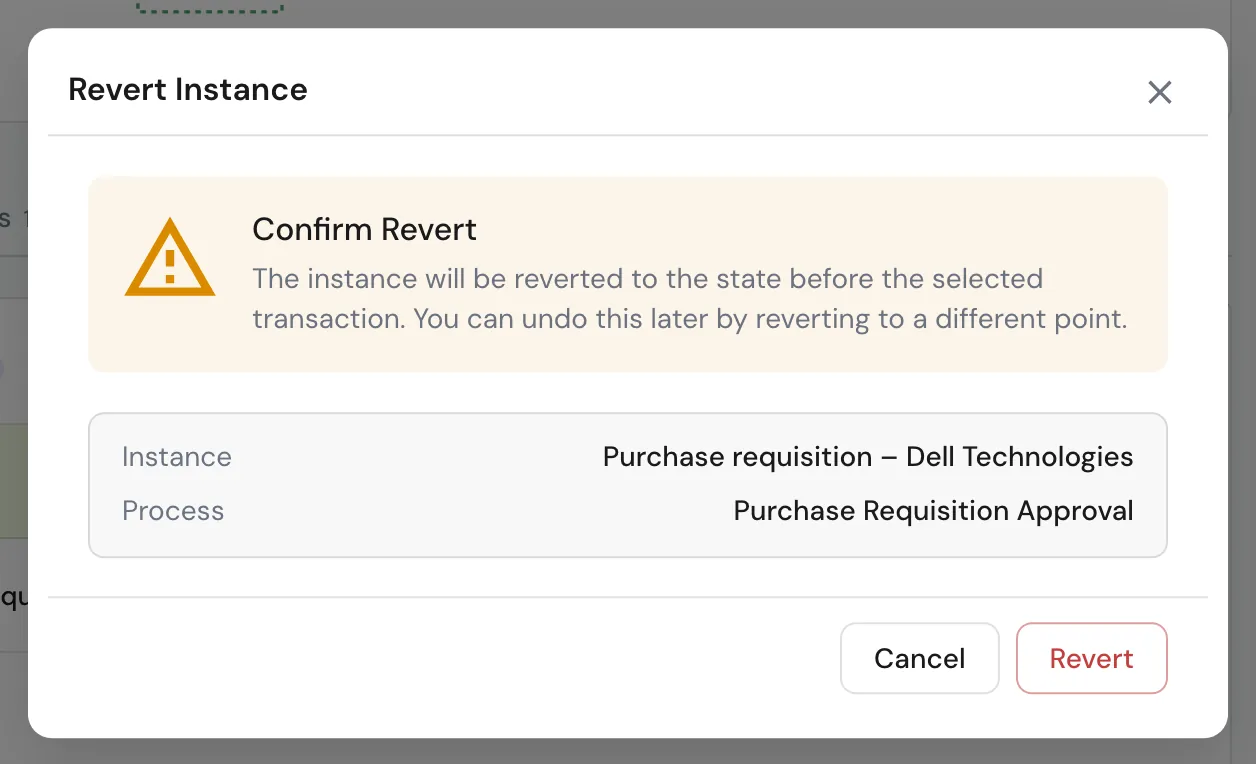
The dialog names the instance and the process so you can check you are on the right run. The instance goes back to the state before the selected step - choose the step whose result you want to redo, not the one before it.
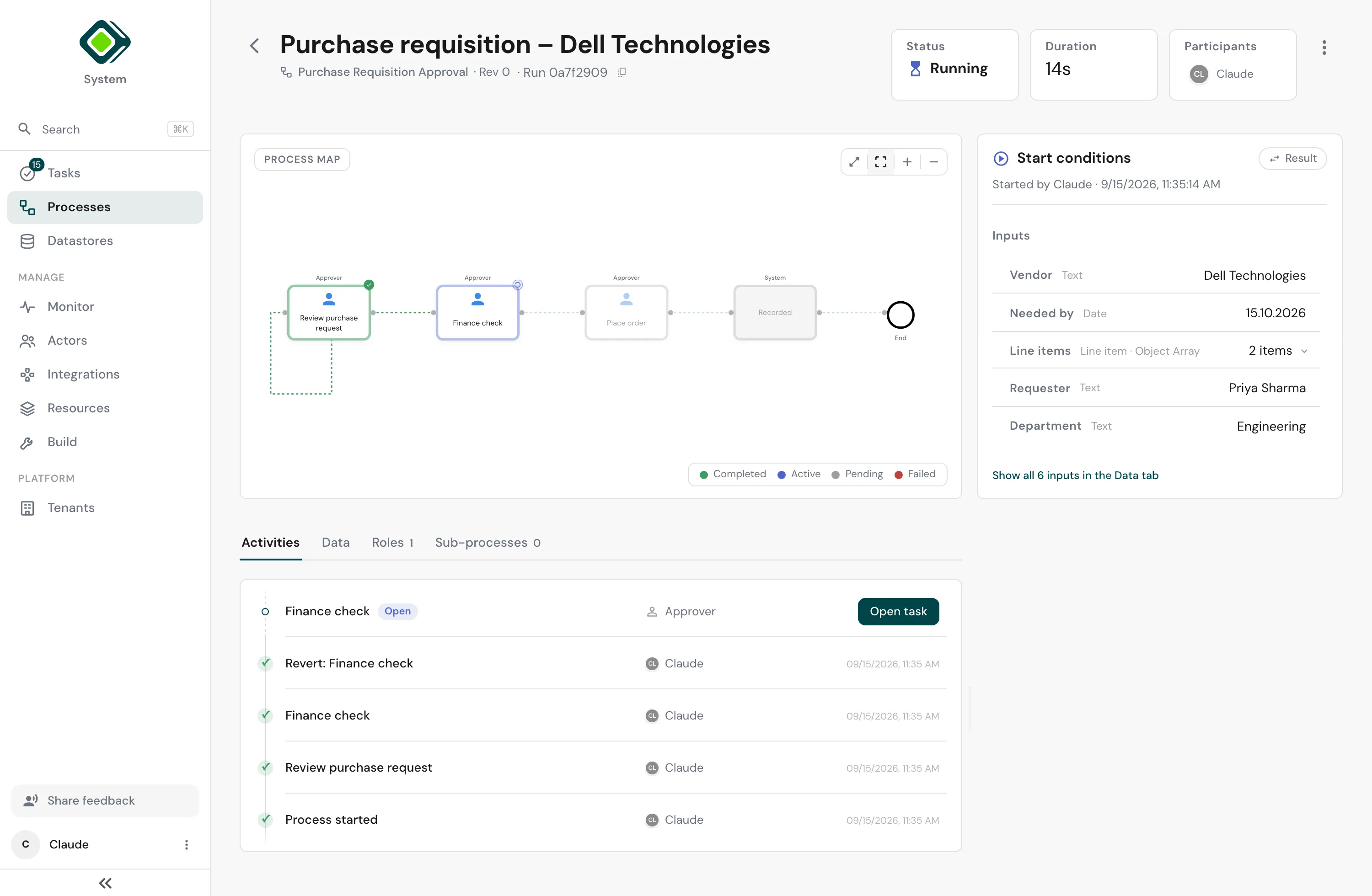
After the revert: Finance check is open again, the earlier finance submission and the revert both stay in the trail, and the graph shows the instance back at that step.
Revert changes this instance only. A sub-process it started during the reverted span keeps running, and a parent instance is not rewound - it only sees the child’s corrected status. Cancel a sub-process yourself if its work is no longer wanted.
Revert works on finished instances too. Reverting to a step before the end
brings a Success or Cancelled instance back to Running.
Migrate to a newer revision
Deploying a process again publishes a new revision. Instances that are already running keep the revision they started on - a deploy never changes a run in flight. Migrate is how you move one instance forward.
The process’s Revision history (from the ⋮ menu on the process page) lists every revision with a preview. The instance shows its own revision as Rev N under its name.
Migrate keeps the instance where it is and switches the definition it follows:
- its data is carried over unchanged,
- symbols that are new in the target revision start with their default value,
- the steps still ahead of it follow the new definition,
- the trail gets a Migrate Instance entry and Rev N changes.
How to migrate one instance
- Open the instance.
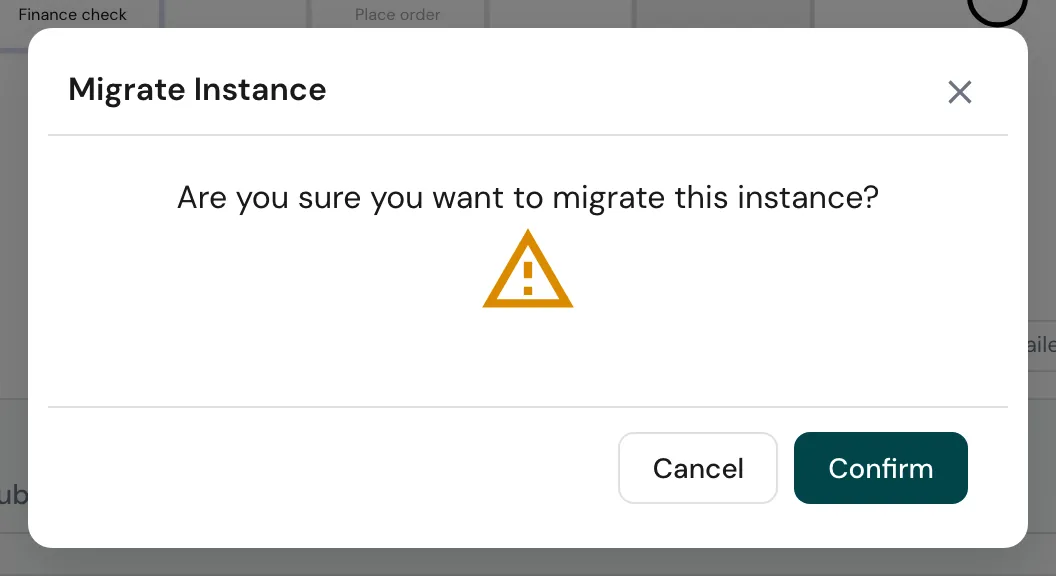
- Open the ⋮ menu in the header and choose Migrate to Rev N.
- Confirm.
The entry appears only when a newer revision exists and you are allowed to cancel the instance - migrate uses the same permission.

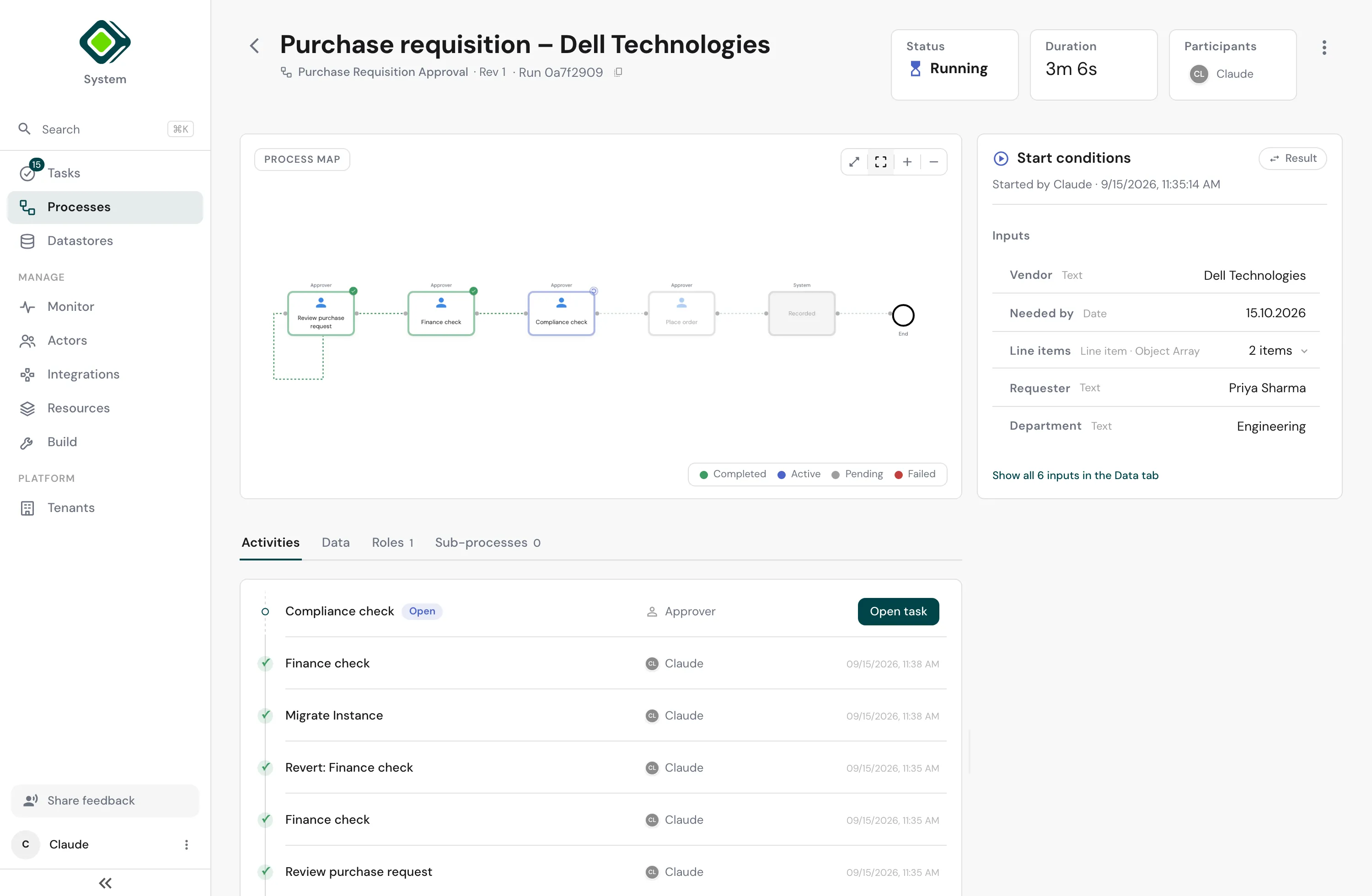
The migrated instance, after the finance check was submitted again: it now runs on Rev 1 and has reached Compliance check, a step that did not exist when it was started.
Migrate is skipped, and the instance left untouched, when the target revision
no longer contains a step the instance is standing on or waiting for. That
includes a step that was deleted and re-added, since it is a different step
to the engine. To move such an instance, revert it to a step that still exists
in the new revision and migrate in the same act (see below). Instances that
are Success, Error or Cancelled are never migrated.
Migrating many instances at once
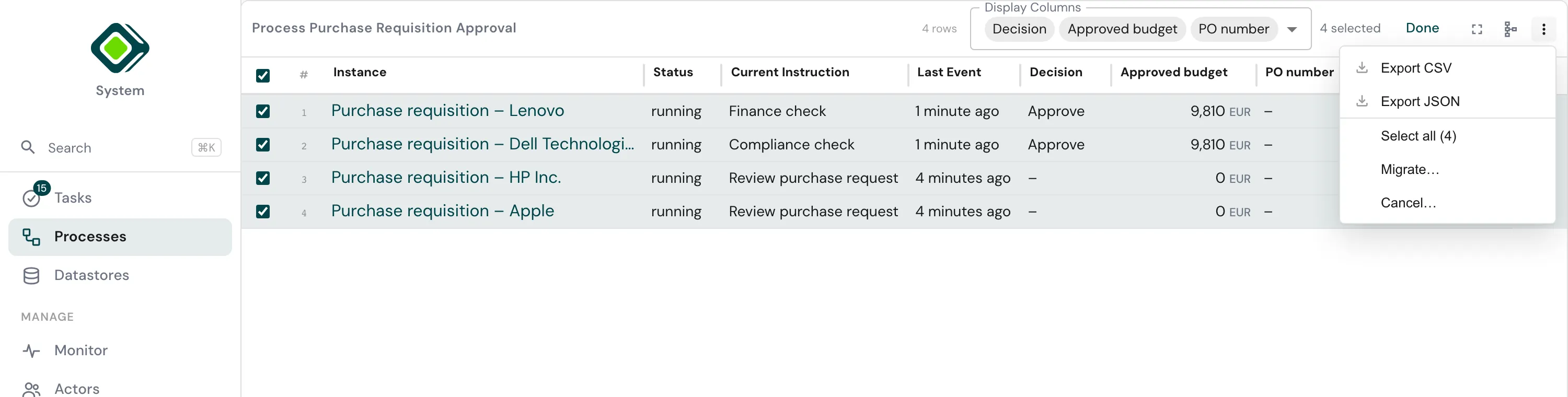
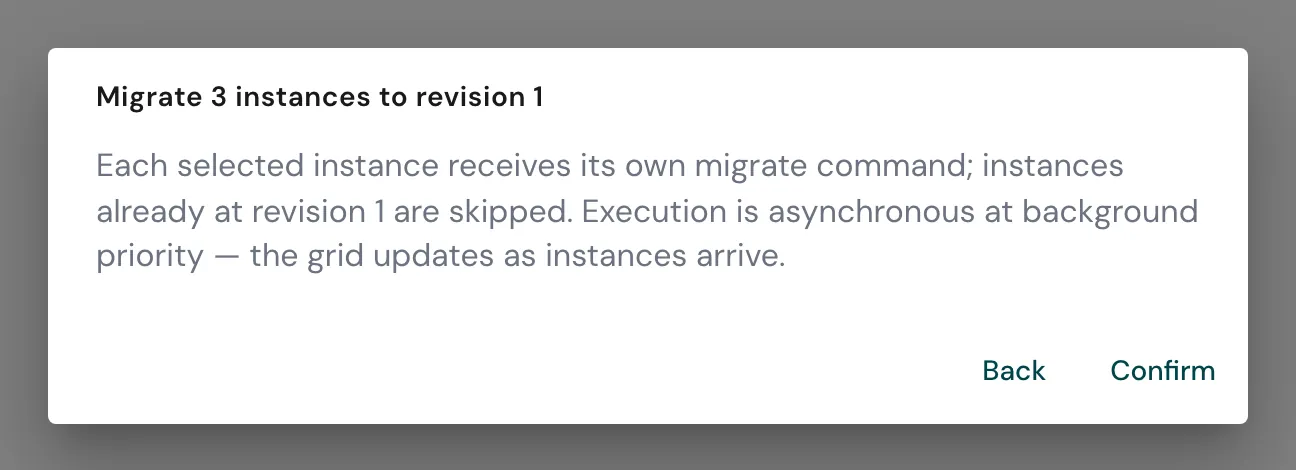
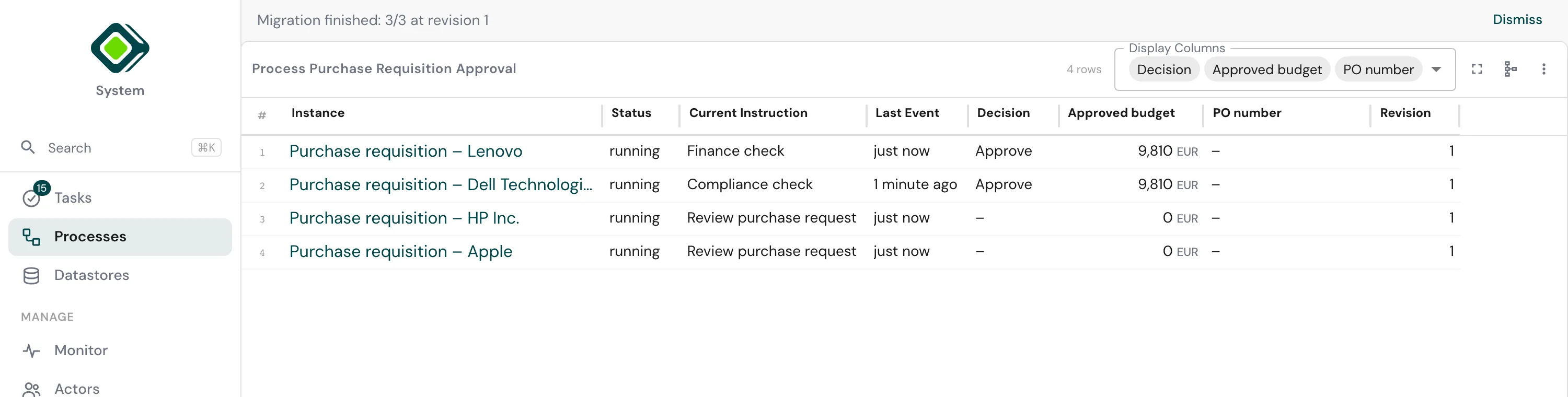
Open the process’s instance grid (the grid icon on the process page). From its ⋮ menu choose Select all, then Migrate…. Each selected instance gets its own migration; instances already on the target revision are skipped. A banner reports progress and the Revision column updates as instances arrive.
Revert and migrate in one act
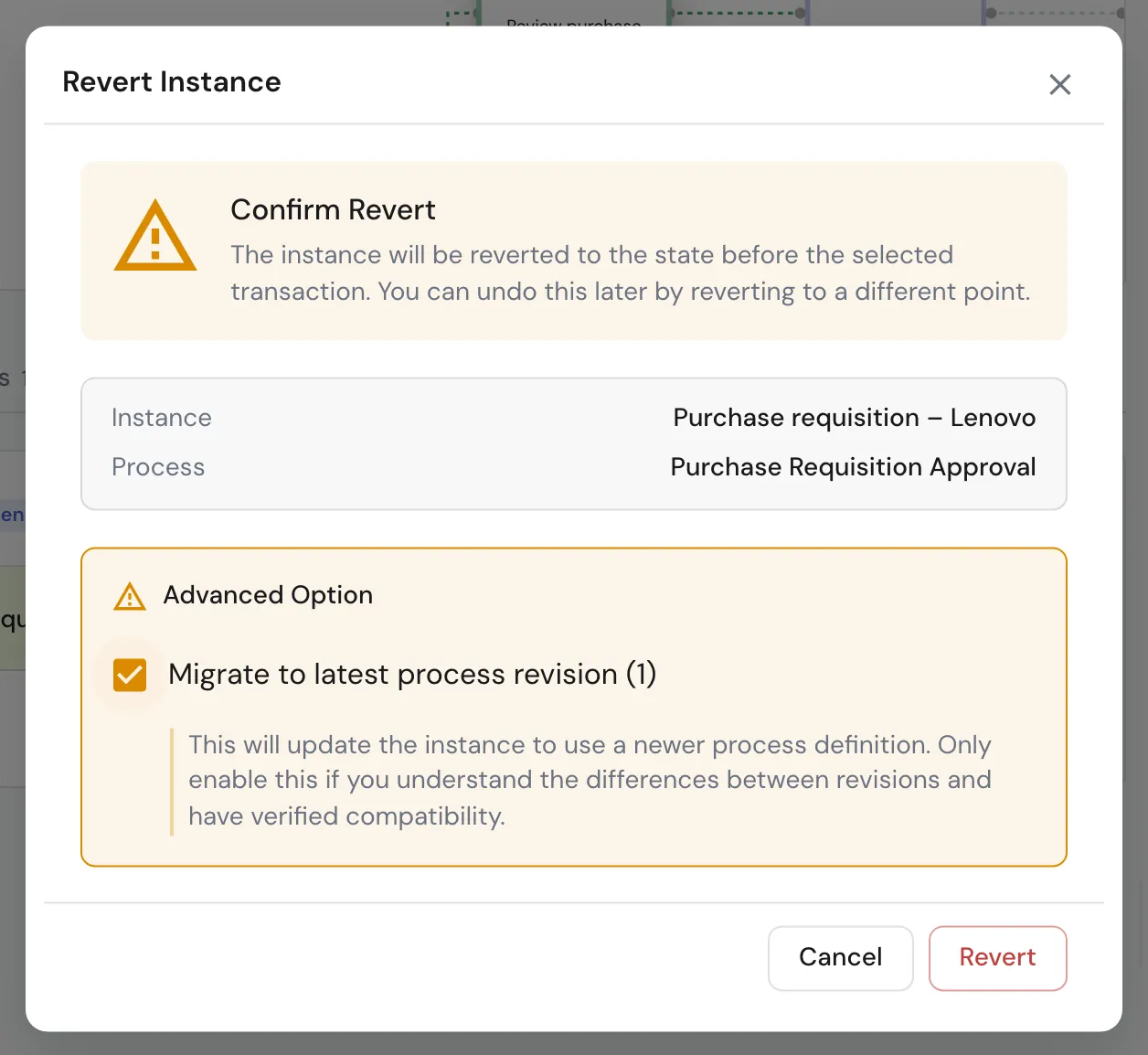
When a newer revision exists, the revert dialog offers Migrate to latest process revision under Advanced Option. Tick it to revert and migrate together: the instance goes back to the chosen step and continues from there on the new revision.
Use it when the steps after your revert point changed in the new revision - for example when the compliance check was inserted after the finance check and you want a finance check that was already done to be redone under the new rules.
Revert or migrate?
| You want to… | Use | What changes | What stays |
|---|---|---|---|
| Redo a step whose result was wrong | Revert | Position and data go back to before that step | Revision, the full trail |
| Let a run pick up a process change | Migrate | Revision, the steps still ahead | Position, data, the full trail |
| Redo a step and pick up a change | Revert + Migrate | Both | The full trail |
Related
- Process Instance View - the view both actions live in.
- Process Instance Lifecycle - the states an instance moves through.
- Deploy your process - how a new revision comes to exist.