Loop
Loop runs a path of steps a set number of times.
Each pass sends execution through the Loop path. When every pass is done, the step takes the success path.
Use it when you know how often something should happen, not which items it should happen for.
Configure this action in the Builder. See Builder Navigation and Workspace Basics for the surrounding UI.
Configuration
Count
Set Count to the number of times the Loop path should run.
This field is required. It takes a number: a constant for a fixed count, or a variable when the count depends on the instance.
Use a whole number of zero or more. A negative or fractional Count is never reached, so the loop never finishes.
Return Values
Map Current Index to a number symbol to know which pass is running.
It counts from 0: with a Count of 3, the passes see 0, 1 and 2.
Use Error Message to capture a problem with the step in a text symbol.
Advanced and Delay
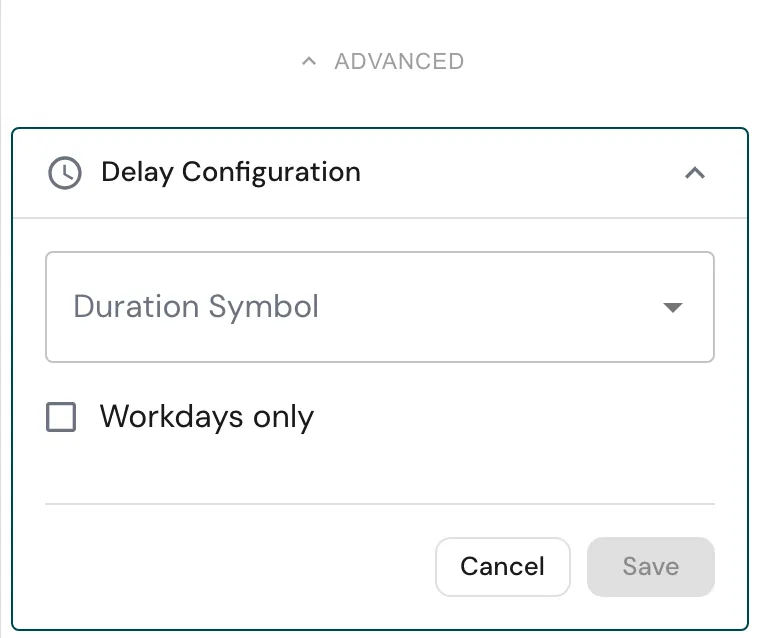
Open ADVANCED for the settings below.
Use Add Delay if the step should become active later.
Enable Workdays only if the delay should ignore weekends and non-working days.
Connections
Use Connections, inside ADVANCED, to review the paths into and out of this step.
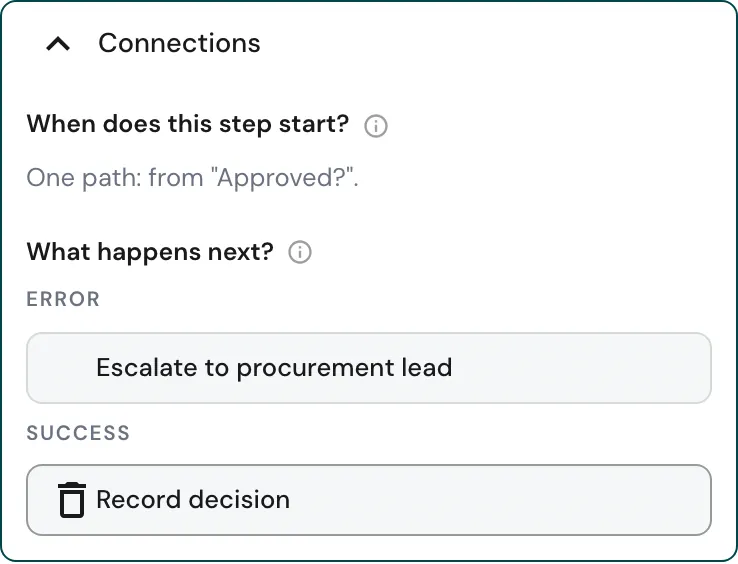
Runtime behavior
Loop runs automatically. It does not wait for user input.
The action exposes two paths:
Loopruns once per pass. Build the steps to repeat on this path, and connect the last of them back to the Loop step.successruns once Count passes are done.
Each time execution reaches the step, it either starts the next pass or, when all passes are done, continues on success.
- With a Count of
0, theLooppath does not run at all: the step continues onsuccessstraight away. - Count is read when the loop starts. Changing it during the loop has no effect until the loop runs again.
- Reaching the step again after it has finished starts a fresh loop from
0. A Loop inside another loop therefore repeats its full count on every outer pass. - Leaving the
Looppath early, through a branch that does not lead back, leaves the loop unfinished. If execution reaches the step again later, it carries on with the remaining passes instead of starting over.
To add an error path for unexpected failures, use Toggle Error Handling on the step. See Error Handling.
Choosing the right loop
| Action | Runs the loop path | Hands each pass |
|---|---|---|
| Loop | Count times | The pass number, as Current Index |
| Loop Over Array | Once per array item | The current item |
| Loop over CSV | Once per CSV row | The row’s columns |
If you are repeating work for every entry in a list, loop over the list instead of counting its length.
Best practices
Bind Count to a variable when the number of passes comes from earlier steps, such as a quantity on a form.
Use Current Index to tell passes apart, for example to number generated documents.
Keep the Loop path short. Move larger pieces of work into a subprocess.
Put the work that should happen once, after all passes, on the success path.
Use cases
- Retries: try an integration call up to a fixed number of times, leaving the loop through a branch once it succeeds.
- Reminders: send a set number of reminders, with a delay on each pass.
- Generated items: create one entry, document, or task for each unit of an ordered quantity.
Works well with
- Conditional Branching to leave the loop early.
- Push to Array to collect a result from each pass.
- Launch Subprocess to run each pass in isolation.