Create Guest Task
Create Guest Task issues a task to someone outside your workspace: a supplier, a customer, an applicant.
The step creates a task link and defines the form the recipient fills in. The recipient needs no account: they open the link, confirm their email address, and submit.
The step does not wait. The process moves on at once, so a later step can send the link, and an Await External Submission step picks up the answer.
Configure this action in the Builder. See Builder Navigation and Workspace Basics for the surrounding UI.
Configuration
Task Name and Instructions
Use Task Name to give the task a clear title. The recipient sees it as the title of their task.
Use Instructions to tell the recipient what to provide. Values from the process can be filled into the text.
There is no role to assign: the recipient is defined by email address instead.
Context shown to recipient
Use Context shown to recipient to show the recipient values from the process, such as an order number or the documents to check.
They appear read-only under Context on the recipient’s task page. Show only what the recipient should see.
Recipient Emails
Set Recipient Emails to the email addresses allowed to open the task. It takes a list of text values: a constant for a fixed list, or a variable when the recipient comes from earlier steps.
This field is required. Each entry can be:
- an exact address, such as
anna@supplier.com; *@and a domain, such as*@supplier.com, for anyone at that domain or its subdomains;*, for anyone who has the link.
Letter case is ignored.
Turn on Match by domain to widen every address in the list to its domain: anna@supplier.com then admits anyone at supplier.com.
An empty list admits nobody. The link is created, but no address can open it.
Return Values: the recipient’s form
The form the recipient fills in is built from the Return Values of this step.
Add an output variable for each field you need: its name is the field label, and its type decides the input the recipient gets. The submitted values are written to these variables.
The step also returns two values of its own:
- Tasklink URL - the link to send to the recipient.
- Token - the link’s identifier, to pass to the matching Await External Submission step.
The platform does not email the link. Send Tasklink URL yourself in a later step, for example with the Google Mail or Microsoft Outlook integration.
Advanced and Delay
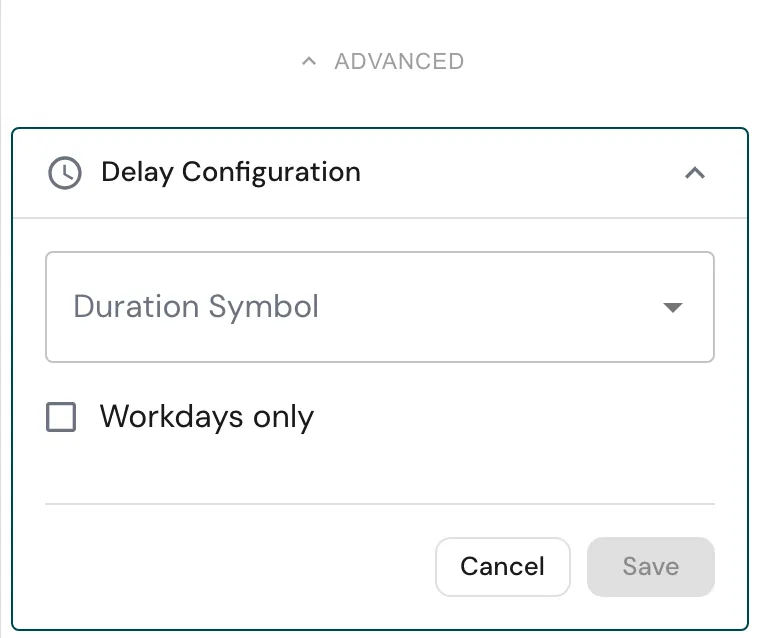
Open ADVANCED for the settings below.
Use Add Delay if the step should become active later.
Enable Workdays only if the delay should ignore weekends and non-working days.
Runtime behavior
Create Guest Task runs automatically and does not wait for the recipient. It finishes with the status Guest task created, and the process continues on success.
What the recipient does:
- They open the link and see your organization’s name and branding.
- They confirm their email address, by email code or by signing in with Google or Microsoft. An address that is not on the list is turned away before any code is sent.
- They fill in the form, with the context you chose beside it, and choose Submit.
- They see a receipt and can download their submission as a PDF.
The first confirmed address claims the task. Someone else on the list cannot open it afterwards. Each task can be submitted once.
The link has no expiry date of its own. It stops working when the process instance ends, for example when it is completed or cancelled.
On their first submission the recipient is registered as an external contact. Admins find them from the Users page under External contacts, and can promote them to a full user.
Following up
- Monitor lists open guest tasks under External tasks, with who has access and whether the task was claimed.
- Admins see every issued link and its status under Outgoing tasks in the same menu. A link cannot be withdrawn there: cancel the instance instead.
See Monitor.
Best practices
Bind Recipient Emails to a variable filled earlier in the process, so each instance reaches the right person.
Prefer exact addresses. Use a domain or * only when you do not know in advance who will answer.
Send the link in the step directly after this one, and say in the message who it is from and what it is for.
Keep the form short, and use Context shown to recipient for what the recipient needs to read rather than asking them to look it up.
Use cases
- Supplier onboarding: ask a new supplier for their company details and certificates.
- Customer confirmation: have a customer confirm a delivery date or sign off a quote.
- Applicant documents: collect documents from a job applicant.
Works well with
- Await External Submission to pause until the recipient has answered.
- Google Mail or Microsoft Outlook to send the link.
- Submit Information for the same kind of form, filled in by someone inside your workspace.