Authentication & Credentials
A deployed connector can’t call anything until it has an account to act as. An account (a credential) is one authenticated identity on the connector - it holds the secret and any per-account settings.
You manage accounts on the connector’s detail page, under Credentials. The auth types a connector offers come from its definition; you’ll only see the ones it supports.
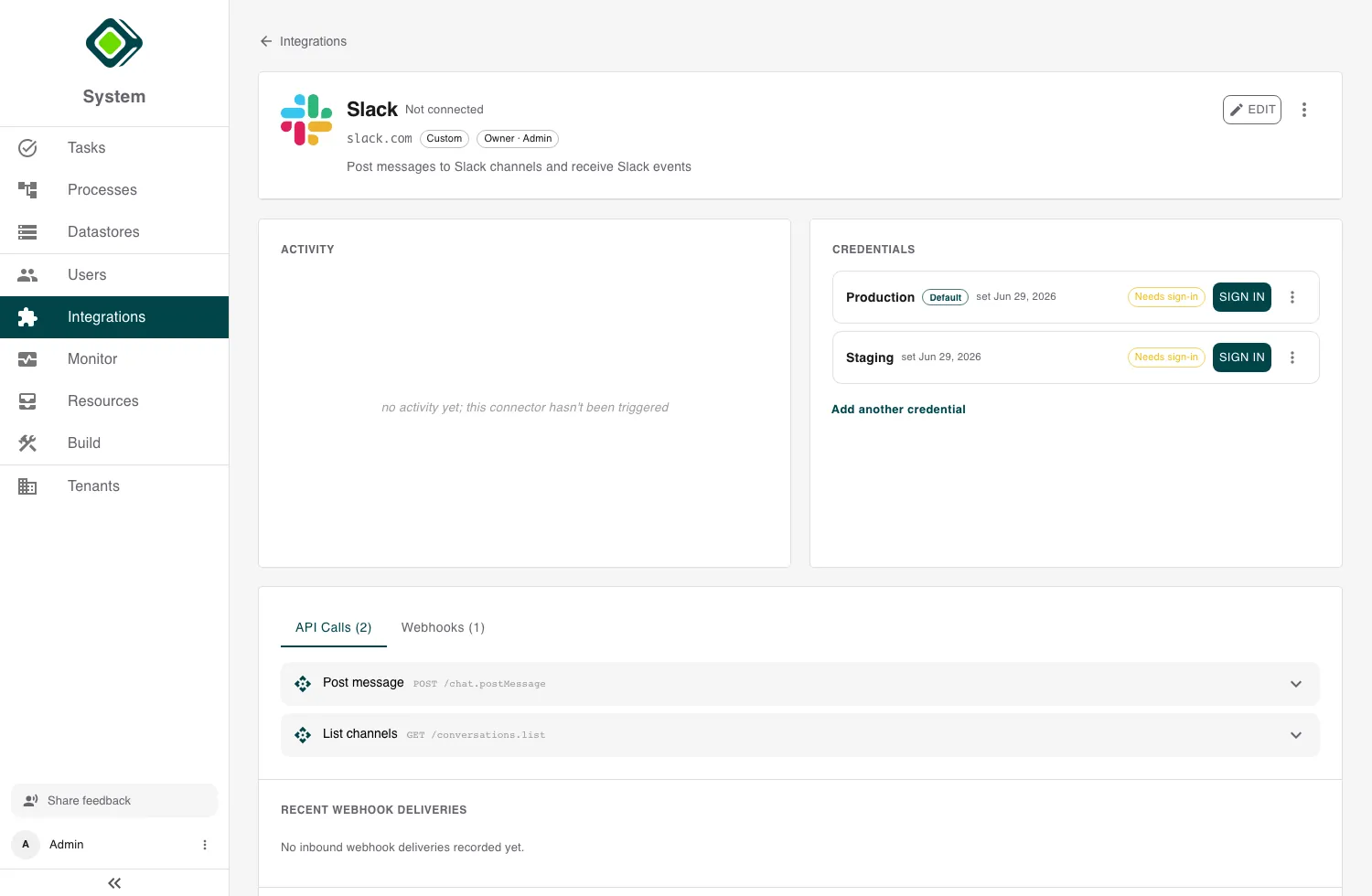
Secrets are write-only. When you enter an API key, password, or signing secret, metamorphOS stores it in its secret manager and never shows it again - the panel only ever displays an account’s status, not its secret. To change a secret, you submit a new one.
Auth types
How an account authenticates depends on the connector:
- None - the service needs no credentials (a public API). The account still exists so status and defaults work the same way.
- API Key - you supply a single key. Where it goes on the request (a header
or a query parameter, with an optional prefix like
Bearer) is part of the connector definition; you only enter the key itself. - Basic Auth - you supply a Username and Password.
- OAuth - you authorize metamorphOS to act on the account’s behalf through the provider’s consent screen. See below.
Adding an account
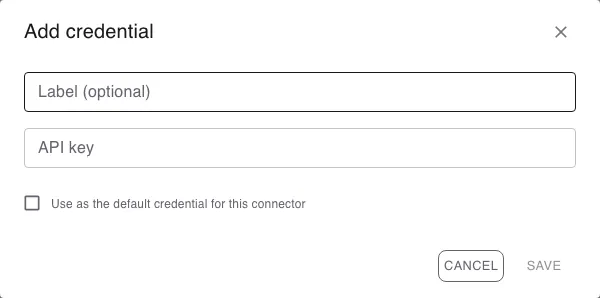
In the Credentials panel, click Add credential (or Connect account
for an OAuth connector). Give it a Label - something like Production - and,
for API Key or Basic Auth, enter the secret. Save it.
The first account you add becomes the connector’s default automatically. Each account shows a status:
- authenticated - a working secret is set; calls can go out.
- needs sign-in - the account exists but has no working secret yet.
The OAuth flow
OAuth has two layers, and it helps to keep them apart:
- The OAuth client - the app registered at the provider (its client ID, secret, and scopes). This is set up once per connector.
- The account grant - the actual authorization, one per account. Several accounts can share one client app (one app, many user accounts).
Set up the OAuth client (once)
For a managed marketplace connector, the publisher already operates the client app - you’ll see Managed by platform and can skip straight to connecting an account.
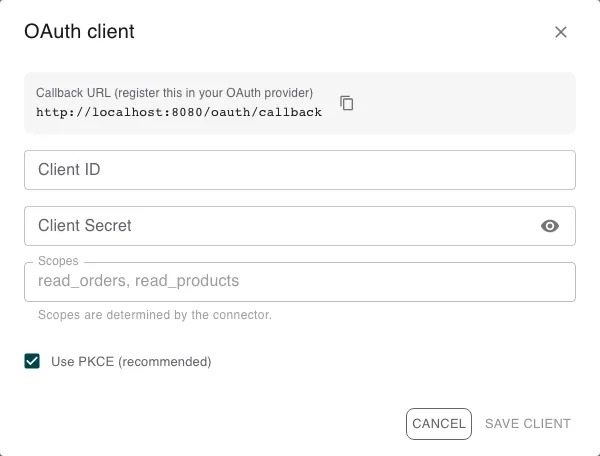
For a connector where you bring your own app, open Set up the OAuth client and fill in the form:
- Register the Callback URL shown in the form with your provider - it’s the address the provider sends the user back to after consent.
- Enter your app’s Client ID and Client Secret.
- Set the Scopes your processes need (request only what you’ll use).
- Leave Use PKCE on unless your provider can’t support it.
Connect an account
With the client configured, click Connect on the account. metamorphOS opens the provider’s consent screen in a popup; approve it, and the window reports success and closes. The account flips to authenticated and is ready to use.
Token refresh is automatic. metamorphOS keeps each account’s access token fresh on its own, refreshing it before a call when needed. You never refresh tokens by hand, and refreshing one account never disturbs another.
To stop using an OAuth account, use its menu to Re-authenticate (re-run consent) or disconnect it. Disconnecting clears the stored authorization at the provider; steps using that account then fail until it’s reconnected.
Multiple accounts on one connector
A connector can hold as many accounts as you need. Common reasons:
- a production account and a staging account on the same service;
- several customer accounts - many Shopify shops, Slack workspaces, or Google accounts - on one connector;
- a dedicated, low-privilege account for one specific process.
Each account has its own secret and its own settings; they’re entirely independent. Add them the same way - Connect another account / Add another credential.
The default account
Exactly one account is the connector’s default, marked with a Default chip. It’s the account a process step uses when it doesn’t name one explicitly.
To change it, open an account’s menu and choose Set as default. You can’t delete the current default - re-point the default to another account first, then delete the old one. (This keeps every step that relies on the default working.)
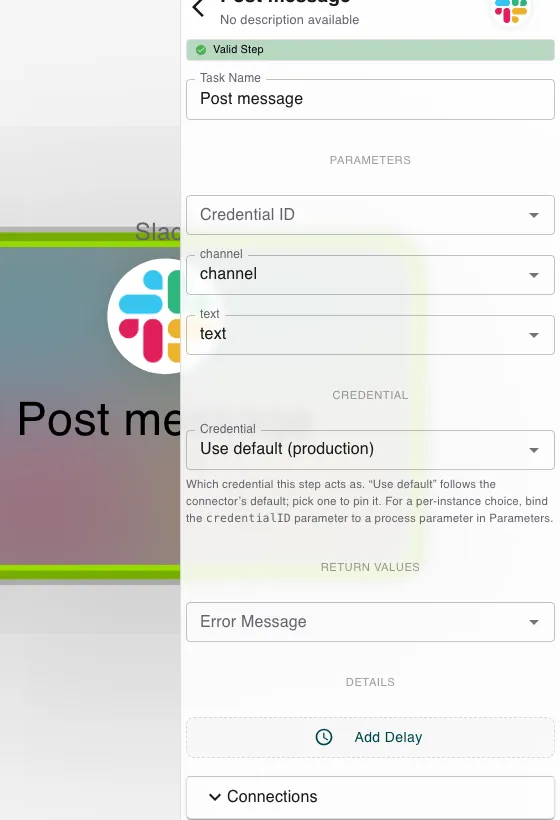
Steps can override the default on a per-step basis - see Using Integrations in Processes.
Per-account settings
If a connector declares connector parameters
(values that differ per account, like a per-shop hostname), each account supplies
its own values. Set them when you add the account, or later from the account’s
menu (Edit parameter values). A call made with that account is templated with
that account’s values - so the acme account hits acme’s host and the globex
account hits globex’s, on the same connector.
Best practices
- One account per environment or external account. Separate
productionandstaging(or per-customer) accounts on one connector beat keeping parallel copies of the connector - same functions, isolated secrets and settings. - Least privilege. Request only the OAuth scopes a process actually needs, and prefer a narrowly-scoped account over one broad one.
- Point the default at the safe account. Make the primary/production account the default and reserve per-step overrides for the exceptions, so an unwired step never surprises you.
- Rotate by re-submitting. To rotate an API key or password, enter the new secret on the same account - its label, default status, and process wiring stay put. For OAuth, re-authenticate.
- Clean up. Disconnect OAuth accounts you no longer use and delete accounts for offboarded services (re-point the default first).
Related
- Building Custom Connectors - define the connector and its auth type.
- Using Integrations in Processes - pick which account a step acts as.
- Inbound Webhooks - set an account’s webhook signing secret.
- Troubleshooting - when an account won’t authenticate.