Data (Configuration Tab)
The Data tab is the process’s data dictionary. It is where you define the data the whole process works with: the named values that flow through it, and the shapes those values take.
Steps read from and write to these values, so the Data tab is one of the first places you set up when building a process and one you return to as it grows.
It has two sub-tabs: Symbols and Types.
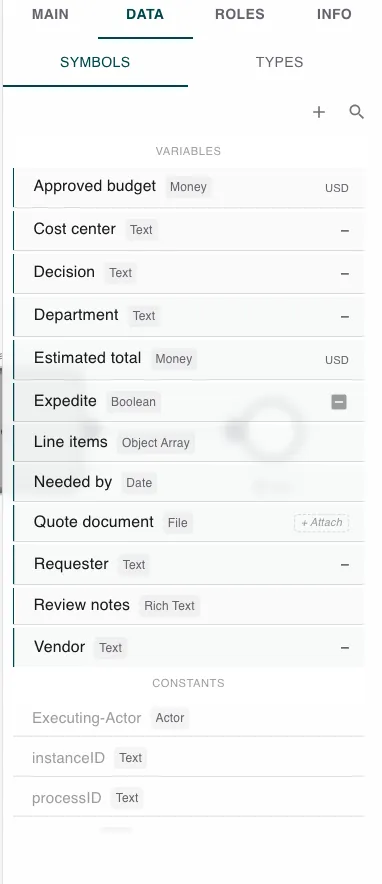
The Main, Data, Roles, and Info tabs configure the process as a whole. They are shown when no step is selected - click a step on the canvas and the panel switches to that step’s settings instead. See Builder Navigation.
Symbols
The Symbols sub-tab lists the process’s named values, split into two sections:
- Variables - values that change as the process runs.
- Constants - fixed values that stay the same.
Use the + button to add a new value, and the search box to filter a long list by name. Each row shows the value’s name and type; rows that hold an object or array can be expanded to preview their inner fields. A new process starts with no values of its own.
These are the values you map between steps and wire into each step’s inputs and outputs. See Mapping & Selection.
Types
The Types sub-tab lists the data structures - the shapes your values can take - grouped by where each one comes from:
- Program - structures defined inside this process.
- Datastore - structures backed by a data store.
- Connector - structures pulled from an external system through an integration.
Use the + button to create a new structure, and the edit and delete controls on each row to change one. A structure that is still in use cannot be deleted until nothing references it. Each row shows which values use it, so you can see its impact before you change it.
When a datastore-backed or connector-backed structure falls behind its source, the row flags it and offers a one-click way to bring it back in line with the latest definition.
Related
- Mapping & Selection - how steps read and write these values.
- Datastores - the source of datastore-backed structures.
- Integrations - the source of connector-backed structures.
- Main (Configuration Tab) - process-level settings alongside Data.