Create CSV
Create CSV turns an array of structured items into a CSV file.
It reads each item in the array, lays the fields out as columns, and produces a single file you can hand to a later step - attach it to an email, store it, or return it from the process.
Use it to export data your process has gathered: a list of records collected in a loop, the results of a lookup, or any array you want a person to download as a spreadsheet.
Configure this action in the Builder. See Builder Navigation and Workspace Basics for the surrounding UI.
Configuration
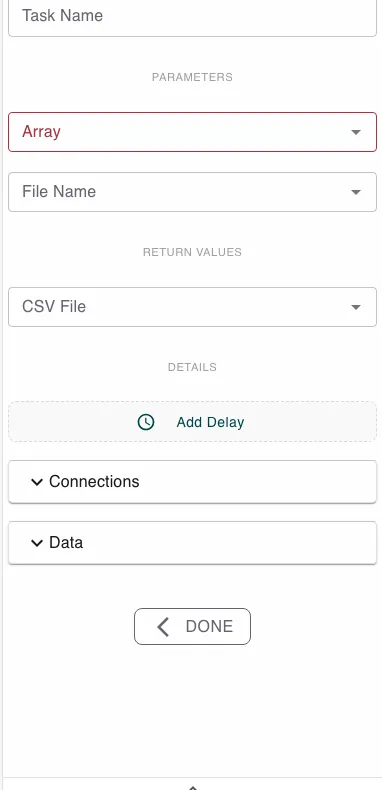
Set the Array parameter to the array you want to export. This is the only required input - until you map it, the step stays invalid and the inspector shows a problem to resolve.
The array should hold structured items - records with named fields - rather than plain values. The fields of those records become the columns of the file, in the order they are defined.
Optionally set File Name to choose the base name of the file. Leave it empty
and the file is named after the array you exported. The .csv extension is
always added for you.
Under RETURN VALUES, the step exposes a CSV File output. Map it onto a file variable so later steps can use the result.
Runtime behavior
Create CSV runs automatically. It does not wait for user input.
The engine takes the column headers from the array’s field definitions, then writes one row per item, looking up each field in order. Missing values are left blank. Fields are separated by semicolons, and any value that contains a separator, a quote, or a line break is quoted so the file stays well formed.
The result is a single CSV File returned through the step’s output mapping.
Create CSV has no logical branch of its own - its normal outcome is success. Like any step, it can still be error-handled: connect an error path to catch an unexpected runtime failure.
Best practices
Build the array before this step so every item has the same set of fields - a consistent shape gives you clean, aligned columns.
Give the file a clear File Name when the default array name would not make sense to whoever downloads it.
Open the file in your spreadsheet tool of choice; because fields are separated by semicolons, pick the matching import setting if columns do not split automatically.
Use cases
- Exporting collected records: Gather rows with Push to Array inside a loop, then export the finished array as one file.
- Downloadable reports: Turn the results of a lookup or a data store query into a spreadsheet a person can open.
- Handing data to another system: Produce a file to attach to an email or store for a downstream integration.
Works well with
- Push to Array to assemble the rows before exporting them.
- Loop over Array to build the array one item at a time.
- Document Processing to combine the file with other generated documents.