Building Custom Connectors
When the service you need isn’t in the marketplace - an internal system, a partner API, anything proprietary - build your own connector.
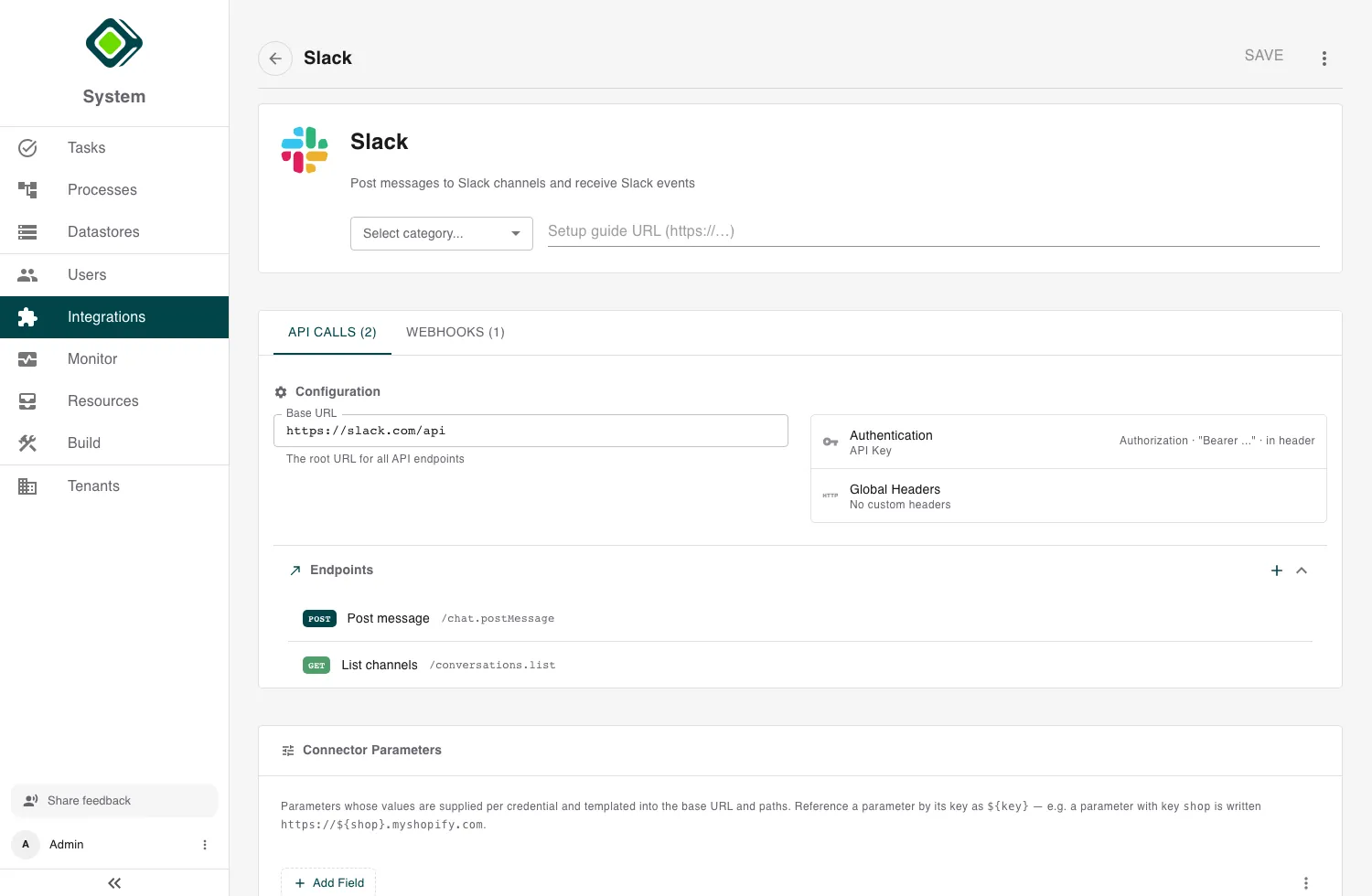
Open Integrations, stay on Custom Integrations, and click Create New to open the connector editor. There you give the connector an identity, point it at an API, define the calls it can make, and save it as a draft to deploy.
You can also Import a connector from a spec file (including an OpenAPI spec) to scaffold the endpoints automatically, then refine them in the editor.
Building and deploying connectors is an admin task. The result is reusable: once deployed and connected, any process can call the connector’s functions.
Identity
At the top of the editor, set the connector’s Name and a short description, pick a Category, and optionally upload an icon. If you intend to publish the connector later, add a Setup guide URL pointing at your provider-side instructions.
The editor splits the connector’s functions into two tabs: API Calls - requests metamorphOS sends out - and Webhooks - events the connector receives. This page covers API Calls; webhooks have their own guide, Inbound Webhooks.
Configuration
The Configuration section holds the connection details shared by every API call.
Base URL is the root address of the service - for example
https://api.example.com. Every endpoint path is appended to it.
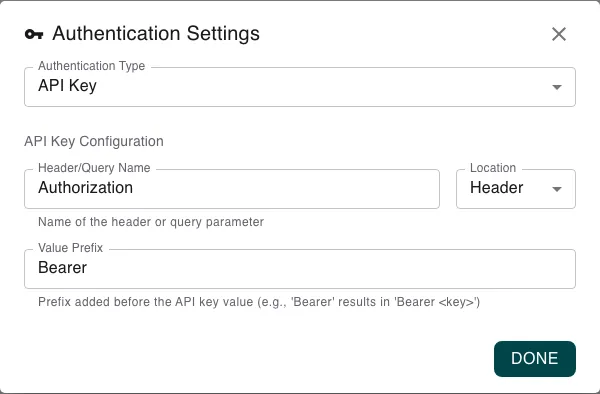
Authentication opens the Authentication Settings, where you choose how metamorphOS proves who it is on each request - None, API Key, Basic Auth, or OAuth. Authentication is covered end to end in Authentication & Credentials.
Global Headers are headers attached to every request from this connector.
Endpoints (API Calls)
Each endpoint is one operation the connector can perform - fetch a record, create an order, send a message. Open the Endpoints accordion and click Add first endpoint (or the add button) to create one. Each endpoint you define becomes a function your processes can call.
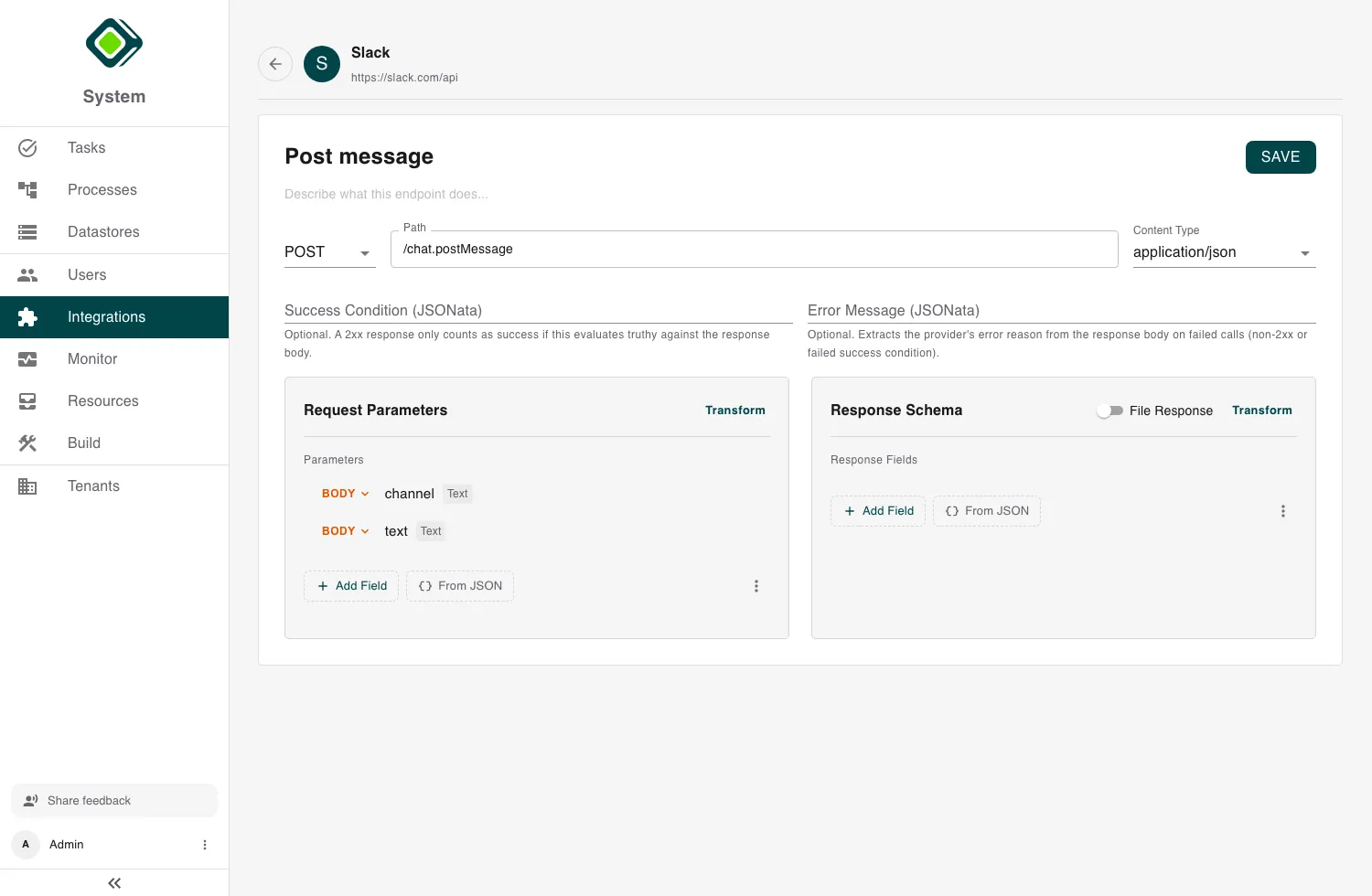
Method and path
Give the endpoint a name and a short description, then set:
- the HTTP method -
GET,POST,PUT,PATCH, orDELETE; - the Path, relative to the base URL - for example
/messagesor/orders/{id}.
Wrap a path segment in {…} to make it dynamic - {id} becomes an input the
process supplies when it calls the endpoint. Use the Content Type to declare
how the request body is encoded (JSON, form-encoded, multipart).
Request parameters
Request Parameters are the inputs the endpoint accepts. For each one, choose where it goes on the request:
- PATH - fills a
{…}placeholder in the path - QUERY - appended to the URL as
?name=value - BODY - sent in the request body
- HEADER - sent as a request header
Add parameters one at a time with Add Field, or paste a sample request and let From JSON build the fields for you.
Response schema
The Response Schema describes the data the call returns, so your process can read individual fields from it. Define the fields by hand with Add Field, or paste a sample API response and use From JSON to generate them.
If the call returns a file rather than JSON - a PDF, an image, a report - turn on File Response; the result is handled as a file instead of structured fields.
Both request parameters and the response schema offer a Transform step. Use it to reshape data - rename or map fields, reformat values - on the way out to the API or on the way back into your process, without changing what the process or the provider sees.
Confirming success
By default a call counts as successful when the API returns a normal (2xx)
response. Some services instead report failures inside an otherwise-normal
response body (for example { "ok": false }). For those, set a
Success Condition on the endpoint: a short expression over the response that
must be true for the call to count as a success. You can pair it with an
Error Message expression that pulls the provider’s failure reason out of the
response, so a failed step shows a useful message.
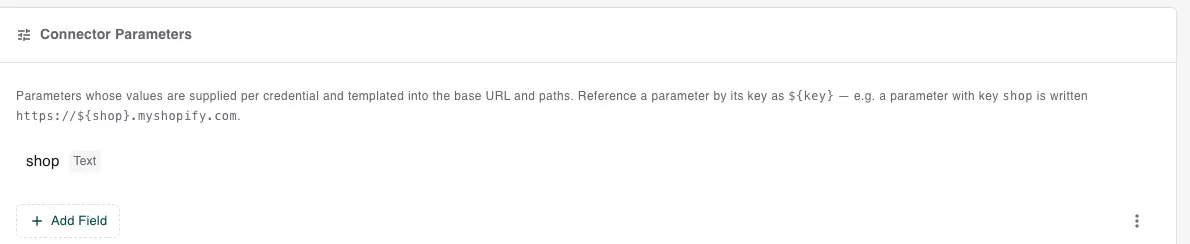
Connector parameters
Some services differ per account rather than per call - the classic case is a
host that contains the account name, like https://{shop}.myshopify.com.
Declare these as Connector Parameters. Reference a parameter in the base URL
or a path by its key as ${key} - a parameter with key shop is written
https://${shop}.myshopify.com. Each account then supplies its own value, and
calls made with that account target the right host automatically.
See Authentication & Credentials for setting these values per account.
Save, deploy, connect
When the connector is ready, click Save. It returns to the Integrations overview as a Draft - saved, but not yet usable.
Open the connector and click Deploy to publish it. Its API Calls then become callable from process steps. The last step is authentication: add an account and connect it - see Authentication & Credentials.
Editing a connector later and saving creates a new draft to deploy; your accounts and connections carry over untouched. The detail page keeps a Version history so you can see what changed.
Related
- Authentication & Credentials - connect an account once the connector is deployed.
- Inbound Webhooks - add events the connector can receive.
- Using Integrations in Processes - call the connector from a process step.
- Marketplace Integrations - publish the connector for other tenants.