Acknowledge (Action)
The Acknowledge action creates a user task.
Use it when someone must confirm receipt, awareness, or completion.
Use a different task type if the user must enter new data.
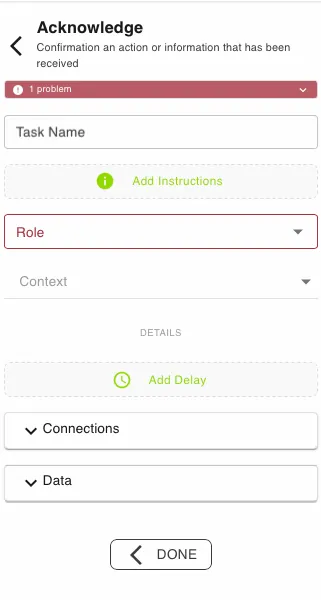
This action is configured in the Builder configurator. See Builder Navigation and Workspace Basics for the surrounding UI.
Status


The current status of the step is shown directly under the Step Type. Specific problems can be seen by expanding the box.
Configuration
Task Name and Add Instructions
Use Task Name to give the step a clear label.
Use Add Instructions to tell the assigned user what they are confirming.
Keep both fields specific. Good labels make the task easier to find and complete.
Use Role to define who is responsible for the task.
Roles are configured at process level in the Roles tab.
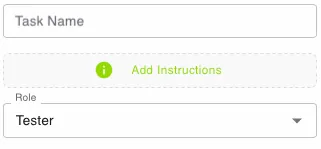
Context
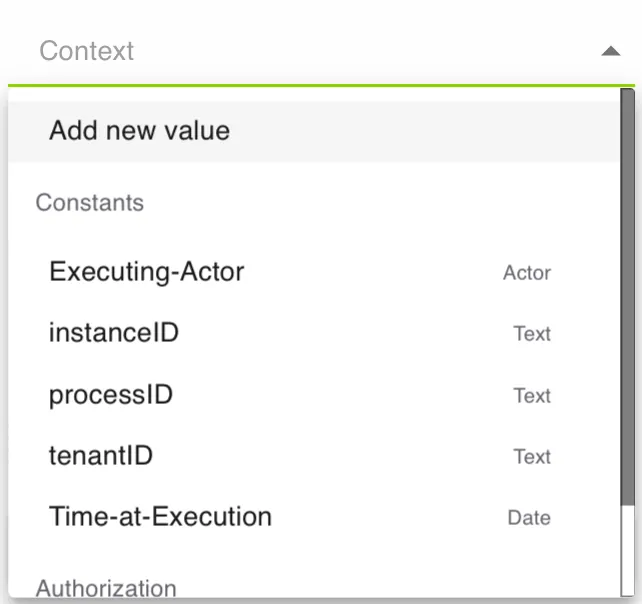
Use Context to pass values into the task.
This can include system values like Executing-Actor and instanceID, or your own symbols.
Unlike Submit Information, Acknowledge is for confirmation only. It does not require the user to submit form values.
Details and Delay
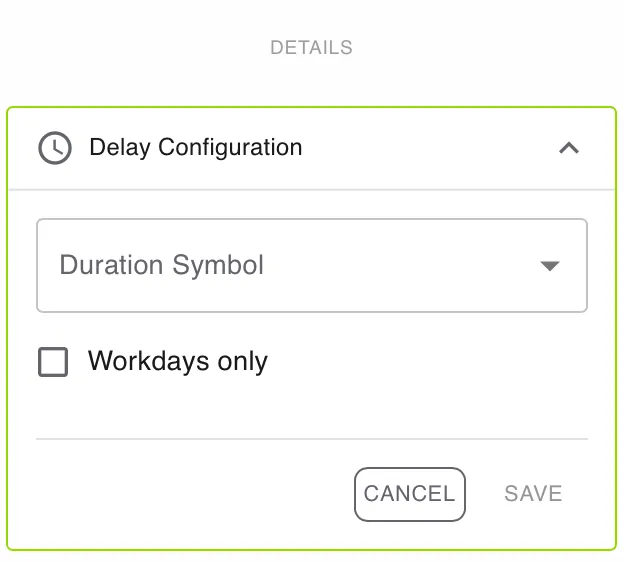
Open DETAILS for advanced settings.
Use Add Delay if the task should become active later.
Enable Workdays only if the delay should ignore weekends and non-working days.
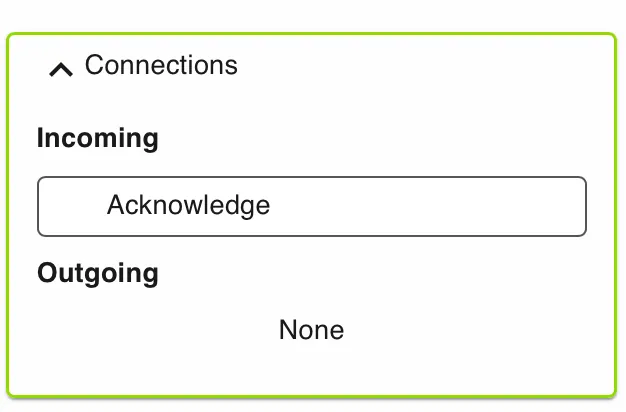
Connections
Use Connections to review incoming and outgoing links for this step.
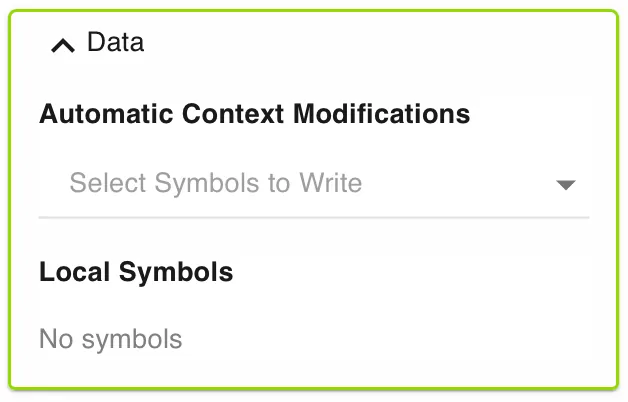
Data
Use Data to manage automatic context modifications and local symbols.
Automatic context modifications update process values when the task is completed.
Local symbols store step-specific values that are only relevant inside this action.
Use cases
Acknowledge works well when a person must explicitly confirm something without adding new information.
- Policy updates: Confirm that a policy, notice, or training material was read.
- Receipt confirmation: Confirm that a document, asset, or message was received.
- Operational alerts: Confirm that an operator has seen and accepted an alert or handoff.
Works well with
- Notification steps to inform the user that acknowledgment is required.
- Timer or Delay logic to escalate when confirmation is overdue.
- Review steps when acknowledgment should be followed by approval or feedback.